

Among the add-ons for browsers such as Firefox and Google Chrome, Proxy SwitchySharp is a must-use tool. It lets the users manage multiple proxy servers and enables them to switch between the various predefined profiles whenever required. There is a wide variety of use cases for this plugin, such as performing any tasks that have to be performed in a stealth mode, getting around geographical restrictions of particular websites, maintaining different proxies for web developers or web testers, or just enabling secure internet usage while in public places.
This setup guide will give you a straightforward and easy-to-comprehend procedure for setting up the extension within the browser for configuring proxies with Proxy SwitchySharp.
Proxy SwitchySharp is an efficient tool, functioning as an easy-to-use browser extension, that allows users to manage multiple proxies seamlessly within the same interface. This feature is particularly valuable for testing and development specialists who often need to work from diverse locations. Additionally, the proxy SwitchySharp extension enables users to bypass geo-restrictions and access blocked content, expanding access to media, educational, and news resources worldwide.
For those wondering how to configure a SwitchySharp proxy, the process is intuitive and requires no advanced IT skills, making it accessible to all. The extension integrates seamlessly with browsers, providing a smooth, convenient user experience.
To use the Proxy SwitchySharp extension in the most effective way, there are a number of steps that you will have to follow from installation to adding proxy servers:
To begin with, navigate to the Chrome Web Store and type in “Proxy SwitchySharp” in the search box to locate the required extension. Click on the “Add to Chrome” button, which will allow you to add and install the Proxy SwitchySharp extension on your browser.

Following the successful installation of the Proxy SwitchySharp extension, you can click on the icon located in the browser’s toolbar. This will take you to a user interface of the extension, which is aimed at configuring proxies.
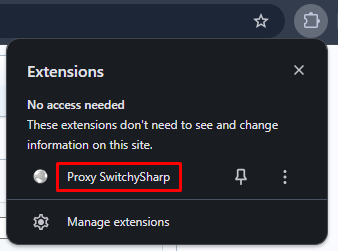
Before you start configuring Proxy SwitchySharp, make sure you have your proxy credentials ready. This usually includes the IP address, port, username, and password from your provider.
For this setup, we’ll use GoProxy as an example provider. GoProxy features:
Here’s how to set up a proxy profile step-by-step:
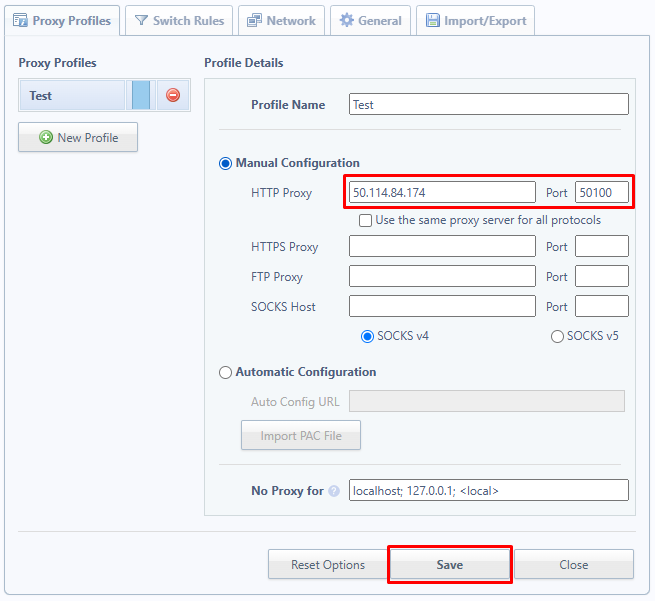
You can create multiple profiles to switch between proxies quickly as needed.
Below is an example table with common proxy connection types and settings from GoProxy:
| Type | Proxy Address | Port |
|---|---|---|
| Residential Proxy | proxy.goproxy.com | 30000 |
| Static Residential | specific IP from GoProxy | 62000 |
| Datacenter Proxy | specific IP from GoProxy | 62000 |
Use the correct port and address depending on the proxy type you are using. This makes it easier to stay organized and ensures you connect successfully.
Proxy SwitchySharp supports automatic proxy selection using PAC (Proxy Auto-Config) files. PAC files help you create flexible rules for switching proxies based on URL patterns, IP ranges, or other custom logic.
To use a PAC file in Proxy SwitchySharp:
PAC files let you create complex rules that decide which proxy to use depending on the website or destination you’re accessing. This reduces manual switching.
Proxy-Seller integrates very well with PAC files. They provide different types of proxies – residential, ISP, datacenter, and mobile. By using PAC files with Proxy-Seller proxies, you can automatically route traffic to boost speed, security, and anonymity, tailored to your business needs.
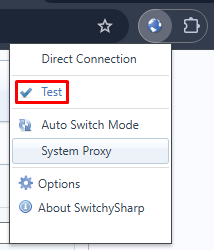
At this point, you have to activate the proxy server in the SwitchySharp extension because the settings have just been modified. So, click on the extension icon and select the profile you have created from the available options.
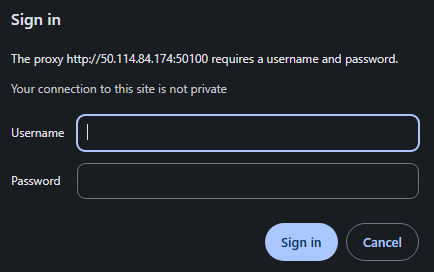
When prompted, fill in the authorization details required in the form that comes up and finally click “Sign in” to finish the process.
Now, visit any special website or tool and check if the IP address is changed, meaning that everything is in order with the proxy and it works properly.
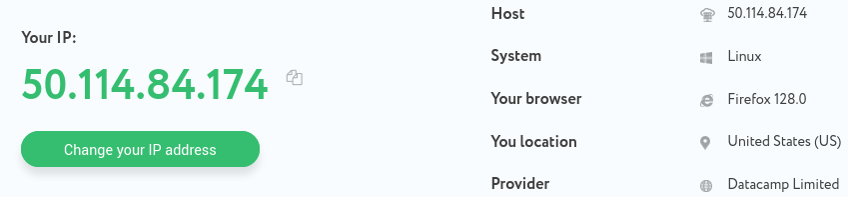
Users can follow this SwitchySharp setup guide to create as many proxy profiles as desired and switch between them when necessary. If you need further help with proxy settings in SwitchySharp, refer to the detailed steps in the instructions. This will ensure the proper SwitchySharp proxy setup for Chrome or Firefox.
You can automate which proxy to use based on URLs or IP addresses by configuring SwitchySharp’s auto-switch rules. This saves time and reduces errors when working with multiple proxies.
Follow these steps to create proxy switchysharp rules:
Once set up, Proxy SwitchySharp will automatically switch proxies without your intervention. This is especially helpful when you work with many websites or services that require different proxy settings.
You may encounter problems during configuration. If you run into problems with Proxy SwitchySharp Chrome, use this simple checklist to fix common issues:
Following these steps will help you resolve most Proxy SwitchySharp Chrome problems and keep your connections smooth.
As well as protecting your privacy when browsing the web, the Proxy SwitchySharp extension also allows for the easy switching between several proxies. Its use in the web browser simplifies even the most complicated proxy configurations, making it possible to conceal one’s identity and efficiently bypass geographical restrictions.

 PHP
PHP Node.js
 Python
 Java
Java Golang
 en
en  Español
  中國人
中國人  Tiếng Việt
  Deutsch
  Українська
  Português
  Français
  भारतीय
  Türkçe
  한국인
한국인  Italiano
  Gaeilge
  اردو
اردو  Indonesia
  Polski
Comments: 0