Setting up a Proxy in the Proxy SwitchyOmega Browser Extension

Comments: 0

Proxy SwitchyOmega is a browser extension designed for setting up, managing, and switching between proxy servers. The extension allows you to assign different proxy servers to each browser profile and switch between them as needed. Proxy SwitchyOmega also includes an “Auto Switch” option for automatically connecting to the necessary proxy server on user-selected sites. This functionality allows you to work with different IP addresses on multiple tabs in one browser window without the need to manually switch between proxies.

Video Guide for Setting up a Proxy in SwitchyOmega

Installation of Proxy SwitchyOmega

You’ll learn how to install Proxy SwitchyOmega on your browser. This extension works with Chrome, Firefox, and Edge. Start by opening the extension store for your browser.

  • For Chrome, visit the Chrome Web Store.
  • Firefox users go to Firefox Add-ons.
  • Microsoft Edge users can open the Edge Add-ons site.

You can search for “SwitchyOmega” directly on these pages.

Follow these easy steps:

  1. In the store’s search bar, type “SwitchyOmega” and hit enter.
  2. Find the extension and click the “Add to Browser” or equivalent button.
  3. Accept any permission prompts that appear.
  4. Wait for the installation to complete.
  5. Confirm installation by spotting the SwitchyOmega icon near your address bar.

Here are the direct URLs to speed things up:

Step-by-step Proxy Setup in Proxy SwitchyOmega

Setting up the Proxy SwitchyOmega extension is identical across all browsers. For example, let's consider the setup in Google Chrome:
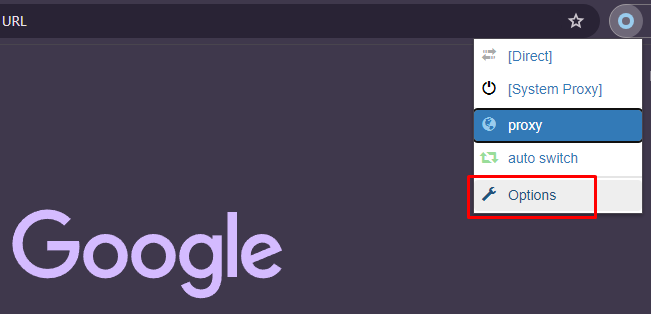
  1. Once you've installed the extension from the Chrome Web Store, click on the extension icon in the browser's top panel, and from the dropdown menu select “Options”.

    2.png

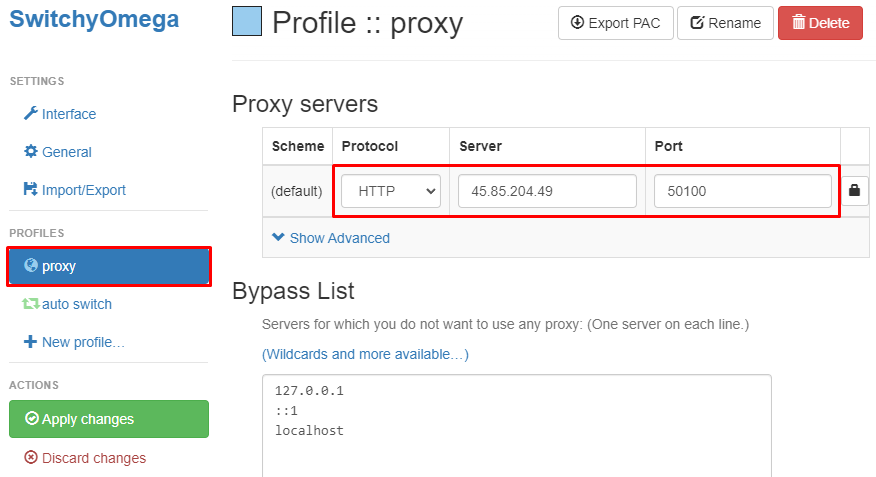
  2. A new window will display the extension settings. Click on “Proxy” in the “Profiles” section. Choose the required protocol, and enter the IP address and port in the fields on the right.

    3.png

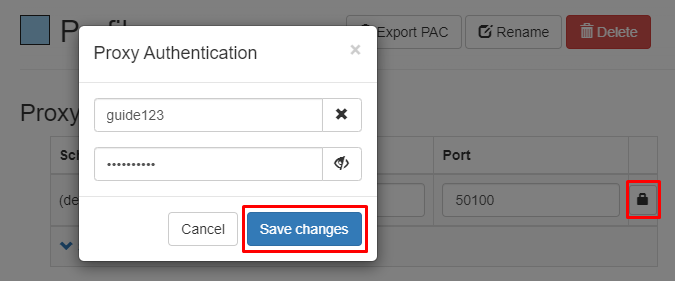
  3. For private proxies, click on the lock icon to the right of the port. In the window that appears, enter the username and password, then click “Save changes”.

    4.png

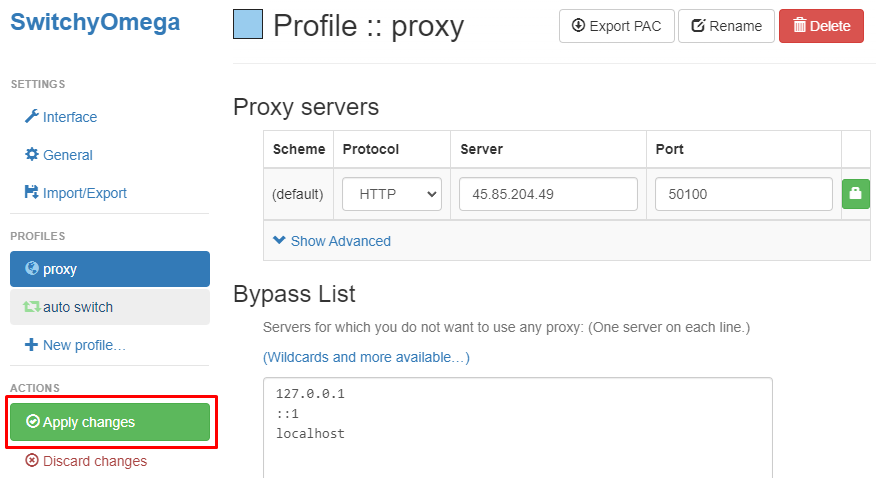
  4. In the “Actions” section, click on “Apply changes” to implement the proxy server settings.

    5.png

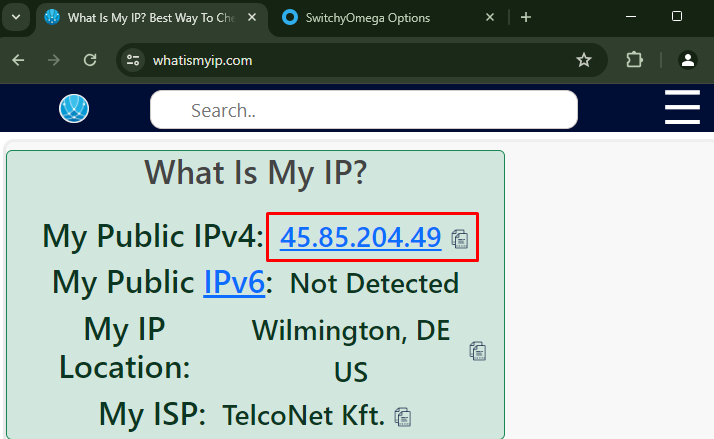
  5. To ensure the setup was successful, open a new browser tab and visit any website to check the geolocation. The displayed IP address should match the proxy IP.

    6en.png

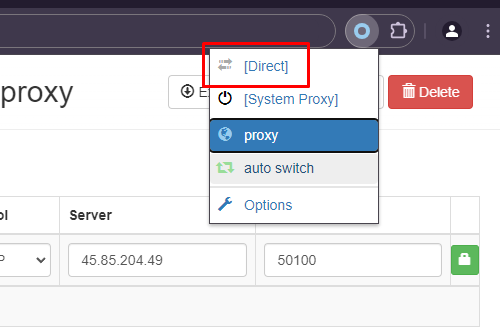
  6. To disable the proxy, select the “Direct” option in the extension menu.

    7.png

The setup of the proxy server in the SwitchyOmega extension is complete. This extension allows for the configuration of various proxy servers and the ability to switch between them manually or automatically as needed. The advanced functionality of the extension enables users to configure proxies for bypassing regional restrictions and blocks and to manage them conveniently during browser use.

Optimizing Proxy Settings in Proxy SwitchyOmega

Next, you’ll optimize your proxy setup in Proxy SwitchyOmega.

Setting Up Auto-Switch Rules

Start by enabling the Auto-Switch mode to switch proxies based on website rules automatically.

To set rules:

  1. Open the SwitchyOmega dashboard.
  2. Click “Profiles” and choose “New Profile.”
  3. Select “Auto Switch” mode.
  4. Add conditions like website URLs, domain keywords, or IP ranges.
  5. Assign proxy profiles to those conditions.
  6. Save your settings.

This approach saves time and ensures you use the right proxy automatically.

Advanced Configuration Options

  • PAC Scripts: For advanced users, Proxy Auto-Configuration (PAC) scripts provide detailed routing control.
    • Create a PAC proxy profile in SwitchyOmega.
    • Paste or link your PAC script URL.
    • Apply and save to start dynamic proxy switching via custom logic.
  • Profile Management: You can also rearrange your profile order in the dashboard. Drag and drop profiles to prioritize the ones you use most. Reordering streamlines manual switching.
  • Bypass List: Make sure to use the bypass list feature to exclude trusted or local URLs from proxying. This avoids slowdowns on familiar sites.

Choosing Proxy Types

To configure proxies inside Proxy SwitchyOmega, create new proxy profiles using each proxy’s details, then assign them to auto-switch rules or use them directly.

Here is a key list comparing datacenter and residential proxies:

  • Datacenter proxies: Fast and low-cost, shared IP pools, easier to detect. Best for non-sensitive browsing and bulk tasks.
  • Residential proxies: Use real ISP-assigned IPs, harder to block or ban. Ideal for sensitive tasks like account management or scraping.

How to Back Up and Restore Proxy SwitchyOmega Settings

Protect your proxy profiles and rules by regularly backing them up. You’ll learn how to export and import your Proxy SwitchyOmega settings quickly.

Backing Up Settings

  1. Open the SwitchyOmega dashboard.
  2. Click on the menu icon (three dots) top-right.
  3. Select “Export/Import.”
  4. Choose “Export Settings.”
  5. Save the JSON file to a safe location like your PC or cloud storage.

Before any browser or extension update, export your settings to avoid losing your profiles.

Restoring Settings

  1. Open SwitchyOmega on the new browser.
  2. Go to the same menu and choose “Import Settings.”
  3. Select the JSON file you previously saved.
  4. Confirm import to load all your proxy profiles and rules.

Consider using cloud storage like Google Drive or Dropbox to keep backups accessible anywhere. For advanced users, Git can track changes to your profile configurations over time.

This routine ensures you never lose your optimized proxy setup in Proxy SwitchyOmega or any alternative browser.

Proxy-Seller: Recommended Proxy Provider

We recommend Proxy-Seller as a reliable proxy provider for Proxy SwitchyOmega users. They offer private SOCKS5 and HTTPS proxies fully compatible with the extension.

  • Proxy Types: They provide a wide range of proxies – residential, ISP, datacenter, and mobile proxies – for different needs (list of the best mobile proxy providers here).
  • Performance & Coverage: Their proxies support speeds up to 1 Gbps and cover 220+ countries globally.
  • Management: The Proxy-Seller user dashboard is easy to use and supports auto-renewal and API access for professional management. This makes managing proxies alongside Proxy SwitchyOmega’s profile automation seamless and efficient.

In Conclusion

Proxy SwitchyOmega is essential for automated proxy control in your browser. Its Auto-Switch mode ensures you use the correct proxy for every site, eliminating manual switching.

To maintain security, remember two things:

  1. Back up your settings (JSON file export) before any updates.
  2. Use reliable providers, like Proxy-Seller, for high-speed, secure, and globally covered proxies that integrate seamlessly with the extension.

By doing this, you keep your proxy management efficient and your anonymity constant.

Comments:

0 comments