

ActiveX is a software platform. Based on it are built software components written in programming languages. ActiveX software can consist of one or more components for solving various tasks. Below we will tell you more about the settings of this platform, about what ActiveX is, and how to disable it.
ActiveX is built on the Component Object Model (COM), a Microsoft technology that creates reusable software components. Each ActiveX control functions as a COM object.
Each COM object exposes specific interfaces that other programs use to interact with it. These interfaces define methods and properties, enabling seamless communication between applications.
ActiveX manages an object’s lifecycle by controlling its creation, usage, and cleanup, ensuring efficient memory and resource management.
ActiveX controls often run scripts using languages like VBScript or JScript. These scripts allow controls to perform tasks beyond simple display, such as modifying files, reading or writing to the Windows registry, and interacting with other system resources. This deep access is powerful but also raises security concerns.
Common ActiveX controls include:
These controls come packaged as .ocx files, which must be registered in Windows using system tools like regsvr32. This registration links the control to the operating system, allowing Internet Explorer and other compatible applications to find and run them.
Understanding the packaging and registration of ActiveX controls is critical. The registration process adds entries to the system registry, which helps the browser recognize and trust the control before execution. This process also affects how the control interacts with web content and the operating system, setting the stage for potential security risks if improperly managed.
ActiveX is tightly linked to Internet Explorer. Other browsers such as Chrome, Firefox, and even modern versions of Edge do not natively support ActiveX controls.
Although some extensions or legacy modes try to enable this support, compatibility remains limited. For example, features like ActiveX for Chrome or ActiveX Chrome plugins often require third-party add-ons that mimic Internet Explorer’s environment.
What is ActiveX COM? This is a software platform whose controls act as building blocks for programs. With their help, you can create distributed applications that will work in the browser. The result is customizable software that allows you to collect data, view files, display animations, etc. ActiveX controls can only be officially processed by Explorer and Windows.
You should know how to disable the ActiveX Flash Player, as this software platform has a serious minus. Because of it, you can mistakenly install malware on your computer: viruses, spyware, etc. Below we will provide you with detailed instructions for activating and deactivating this framework on different browsers.
To activate the elements of this framework in the browser, take 5 simple steps:
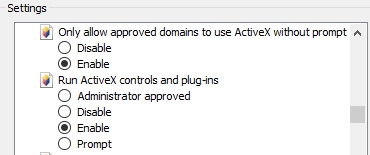
In this case, filtering in the same settings section is better off. It may interfere with the proper loading of some applications.
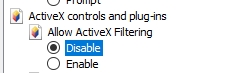
Do you need to disable ActiveX in Internet Explorer?
In a browser from Google Chrome, this problem can be solved with the help of additional software. Find the IE Tab extension in the Google online store and install it on your browser.

Unfortunately, ActiveX is not provided for Opera, Firefox, Safari, and other browsers.
Using Chrome? Get more benefits by connecting it with proxies. Learn how to set up a proxy server in the browser of Google.
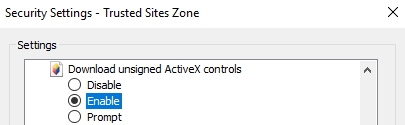
If you see notifications in the browser that ActiveX controls are prohibited or blocked, then you need to set the resolution manually.
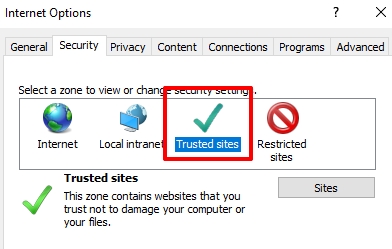
Follow the step-by-step instructions:
ActiveX controls have been a frequent target of security vulnerabilities. These include buffer overflows, which occur when attackers feed the control data larger than it can handle, leading to crashes or arbitrary code execution. Remote code execution vulnerabilities allow attackers to run malicious code on your PC by exploiting flaws in the ActiveX control. Privilege escalation issues can grant attackers higher access levels than they should have, putting your system and data at serious risk.
Malicious websites or infected documents exploit these vulnerabilities, often through drive-by downloads and phishing scams. These attacks silently install or trigger unsafe ActiveX controls if security settings are lax.
Some ActiveX controls are marked “not safe for scripting,” meaning they should not be run automatically by scripts. However, attackers sometimes bypass security prompts using social engineering or exploiting browser weaknesses.
To keep your system secure, disabling or carefully managing ActiveX controls reduces the attack surface. Microsoft has issued numerous security advisories on these topics, including MS06-013 and MS07-029. Regular cumulative security updates patch known ActiveX vulnerabilities, so keeping your system updated is essential.
Best practices for ActiveX security include:
You can manage and disable ActiveX controls centrally using the Group Policy Editor (gpedit.msc), available on Windows Pro and Enterprise editions. This tool lets you apply consistent security settings across multiple computers in your organization.
To disable or control ActiveX, follow these steps in Group Policy Editor:
Each zone represents a different trust level for websites, impacting whether ActiveX controls can run. For example, controls may be allowed on Trusted sites but blocked on Internet or Restricted sites zones, limiting risks.
Organizations use Group Policy to enforce ActiveX settings for multiple reasons:
For larger environments, administrators may deploy these policies using tools like the Policy Management Console (PMC) or System Center Configuration Manager (SCCM), providing scalable and centralized control.
To further improve security and maintain internet access when ActiveX is disabled or limited, consider using Proxy-Seller services.
Proxy-Seller offers reliable, high-speed SOCKS5 and HTTP(S) proxies with geo-targeting and IP rotation. This helps businesses maintain privacy, avoid IP bans, and control web traffic when using legacy ActiveX applications requiring internet connectivity. Integrating Proxy-Seller proxies with your Group Policy settings enhances layered protection, allowing secure and anonymous browsing even when ActiveX controls are restricted.
Their 24/7 customer support and API make proxy management smooth in enterprise settings that rely on legacy technologies.
Done. Now you know what ActiveX is and why you need it. You also have step-by-step instructions on how to configure this framework in popular browsers. Enjoy your use!

 PHP
PHP Node.js
 Python
 Java
Java Golang
 en
en  Español
  中國人
中國人  Tiếng Việt
  Deutsch
  Українська
  Português
  Français
  भारतीय
  Türkçe
  한국인
한국인  Italiano
  Gaeilge
  اردو
اردو  Indonesia
  Polski
Comments: 0