 Proxy for Telegram
 Proxy for LinkedIn
 Proxy for Google
 Proxy for Ebay
 Proxy for Twitter
 Proxy for TikTok
Configuring a proxy in Epic Privacy Browser

Epic Privacy Browser offers the capability to use a proxy server that conceals the user's real IP address and encrypts DNS queries. The platform blocks all attempts by scripts to track personal data. Setting up a private proxy in Epic Browser can be done through the system settings of the Windows and MacOS operating systems. For stable long sessions, you may prefer to buy ISP proxy endpoints and use them as your system proxy. Proxies can also facilitate access to blocked resources such as Spotify, Netflix, YouTube, and more. If you need a more natural IP profile for such platforms, you can buy private residential proxies and route Epic Browser traffic through them. By default, Epic Privacy Browser does not save browsing history, and sites, links, and certificates associated with the main source are deleted when the browser is closed.
Step-by-step proxy setup in Epic Privacy Browser
Epic Privacy Browser includes built-in privacy and security protections, including the use of a proxy to anonymize your web surfing. Since Epic Browser does not have its own functionality for connecting through private proxy servers, proxy setup with authentication can be accomplished by configuring the proxy settings in the Windows OS. Note that the configured IP address will work for the entire OS, including all programs and applications on your device. If you specifically need a mobile-network footprint across apps, 4g lte mobile proxies can be used as the system endpoint as well. To set up a private proxy server with authentication, follow these steps:
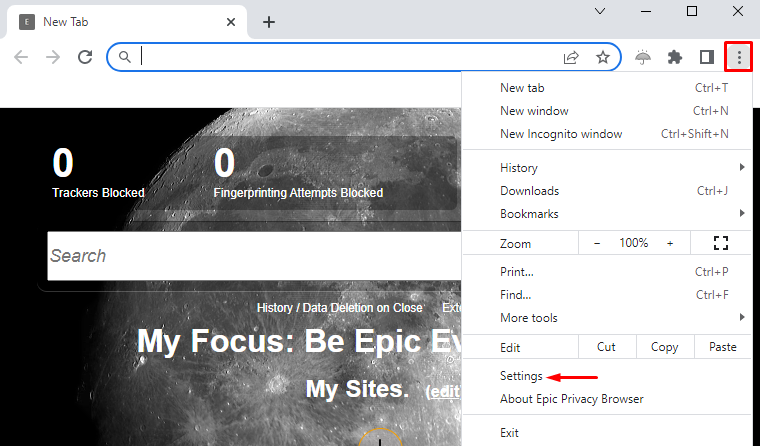
- Install and launch Epic Privacy Browser. Click on the three dots in the upper right corner and select “Settings” from the list.
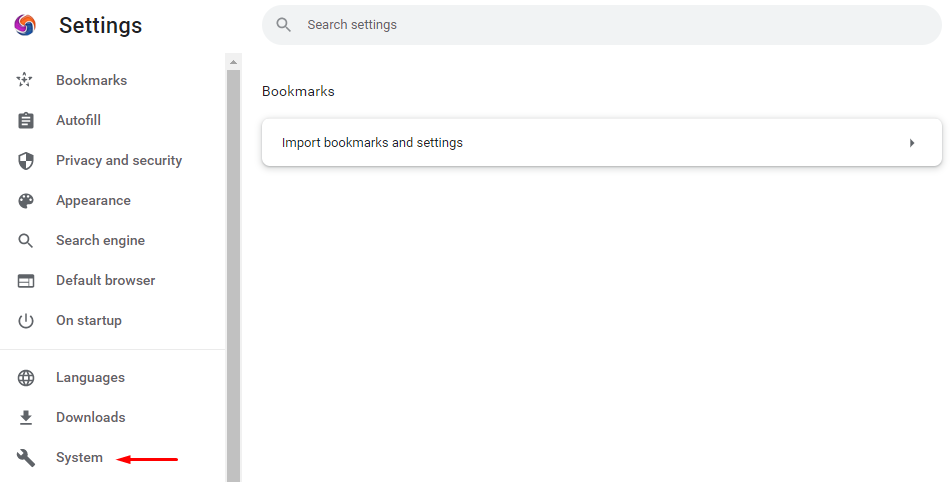
- In the “Settings” menu, go to the “System” section.
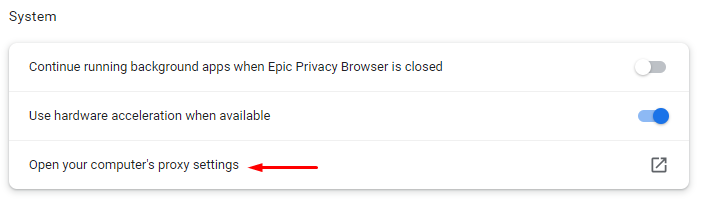
- In the opened window, select the submenu “Open your computer’s proxy settings”.
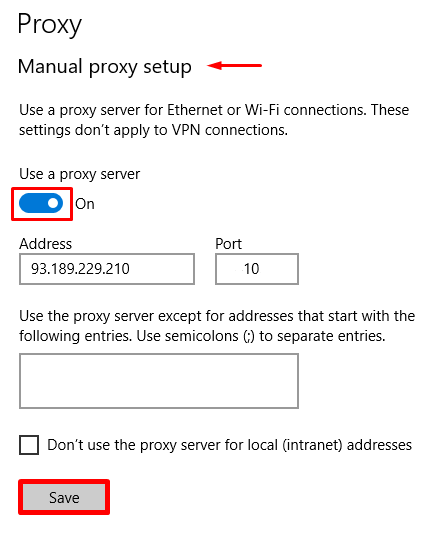
- A system settings window will open where you need to activate the “Use a proxy server” switch and enter the proxy details: IP address and port. If your provider supports IPv6, you can also configure a proxy IPv6 by entering the IPv6 address and port in the same fields. To save the setting, click the “Save” button.
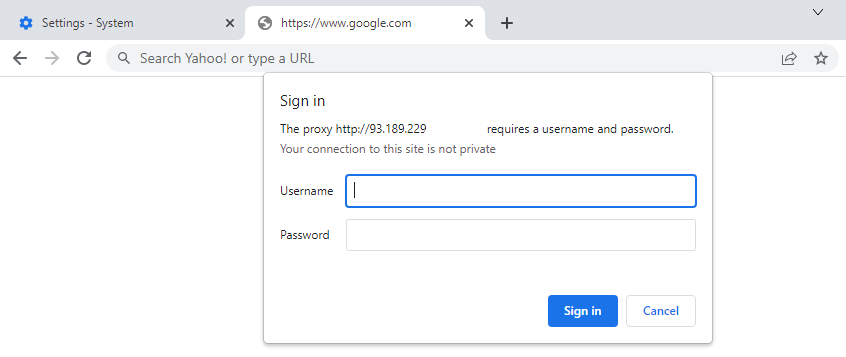
- After saving the settings, when making a request in Epic Privacy Browser, a proxy server authorization window will appear where you need to enter the username and password, then click the “Sign in” button.
The proxy server is now successfully set up in Epic Privacy Browser and ready for use, ensuring private and secure web surfing online. If you still need endpoints, browse our proxies for sale and choose the format that matches your setup (IP:port + authentication).
PROXIES FROM $0.02/IP
Ready to put this into practice?
Pick a proxy type and location, and start using it within minutes.
Instant delivery
24/7 support
Refund policy
About the author