

Using proxies in GSA Search Engine Ranker allows users to run automated SEO campaigns efficiently, securely, and at scale. Using proxies reduces the likelihood of IP bans, allows request rotation, and supports higher submission volumes by spreading traffic across multiple addresses. For tasks like search engine scraping, account registration, and backlink generation, a GSA SER Proxy plays a vital role in maintaining uninterrupted operation.
When handling high-frequency actions across different platforms, relying on a single IP is risky. Most websites implement automated bot detection and blocking mechanisms. By integrating GSA Search Engine Ranker proxies, users can bypass these filters and simulate distributed access, which is essential for consistent link-building and SEO automation.
Before setting up proxies for GSA Search Engine Ranker, make sure you have private proxies ready. These should be in the format IP:Port:Username:Password. Avoid using public or shared proxies. They often lead to blocks and poor performance. Instead, focus on private, reliable proxies designed for SEO tools.
When choosing your proxy provider, check these key factors:
Also, consider the provider’s proxy location diversity and rotation policies. Wide geographic coverage improves campaign targeting. Rotation methods help prevent footprinting and bans.
Proxy pool management tools can simplify proxy use. You can integrate services like ProxyRack, Luminati (Bright Data), or Smartproxy with GSA. These services offer large proxy pools and easy rotation options.
One highly recommended option is Proxy-Seller. They offer private SOCKS5 and HTTP(S) proxies with speeds up to 1 Gbps and 99% uptime. Their proxies come from more than 220 countries, providing great geodiversity.
Proxy-Seller supports multiple authentication types, including username/password and IP whitelist. This flexibility fits perfectly with proxies for GSA Search Engine Ranker users who want both security and convenience.
With over 800 subnets and 400 networks, Proxy-Seller makes sure there is excellent IP diversity and stable connections. This reduces the risk of bans and improves campaign reliability.
If you need a fast setup and solid support, Proxy-Seller offers 24/7 customer service. They respond quickly and provide configuration help, making your GSA Search Engine Ranker proxy setup hassle-free.
Proxy-Seller’s offerings include residential, ISP, datacenter IPv4/IPv6, and mobile proxies. This variety fits different targeting and rotation needs in your GSA SER campaigns, giving you more control over where and how you post.
Using a proxy in GSA SER helps distribute requests, maintain session continuity, and keep connections stable across target sites. When working with search platforms, choosing a reliable search engines proxy helps maintain stable access and prevents connection errors during automated tasks.
Start by launching GSA Search Engine Ranker. On the main dashboard, locate and click the Options button in the top toolbar. This opens the program’s configuration panel. All global settings, including proxy configuration, are managed from this window.
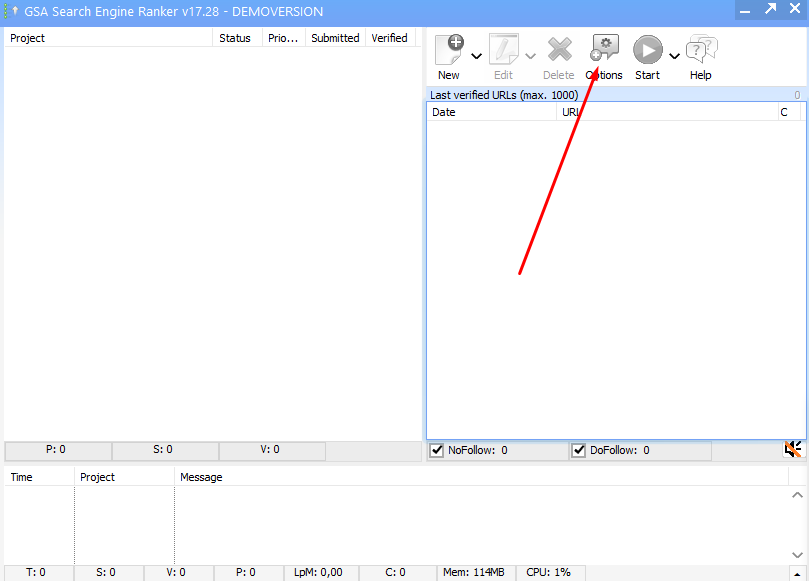
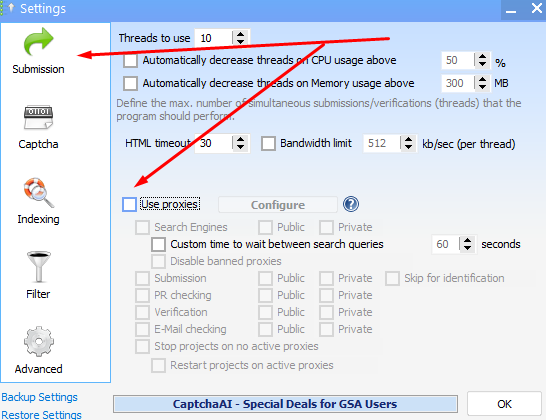
In the Options menu, go to the Submission tab. Enable the checkbox labeled Use Proxies. Once enabled, additional configuration options become available.
Activating this setting is required before you can assign proxy rules and import IPs. With proxy usage enabled, GSA Search Engine Ranker proxies will route traffic automatically during submission activities.
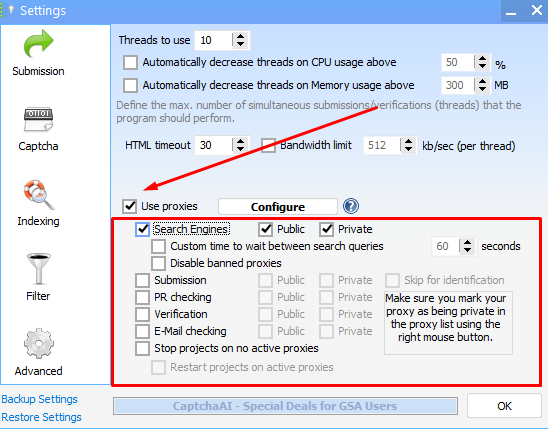
Next, select the specific operations that should use GSA Search Engine Ranker proxies. These typically include:
Each option instructs the tool to apply proxy usage to those areas only. For example, enabling proxies for search engines helps prevent access bans when performing repeated queries. Assigning roles properly ensures that your GSA Search Engine Ranker proxy is only used where needed, preserving performance.
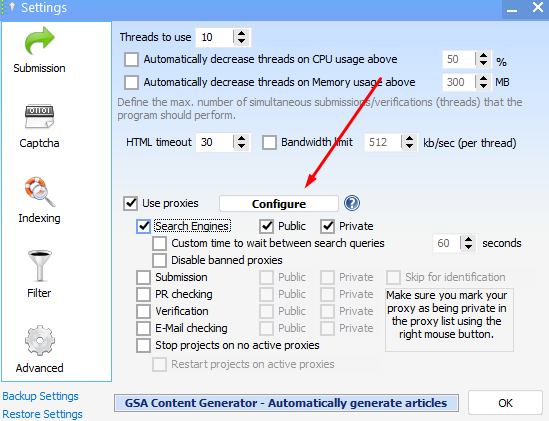
Click the Configure button to apply your selected options. This opens the proxy configuration window, allowing you to add, import, and test proxy servers.
Without this step, GSA will not allow proxies to be registered. The configuration window provides access to IP pool management, testing tools, and usage status.
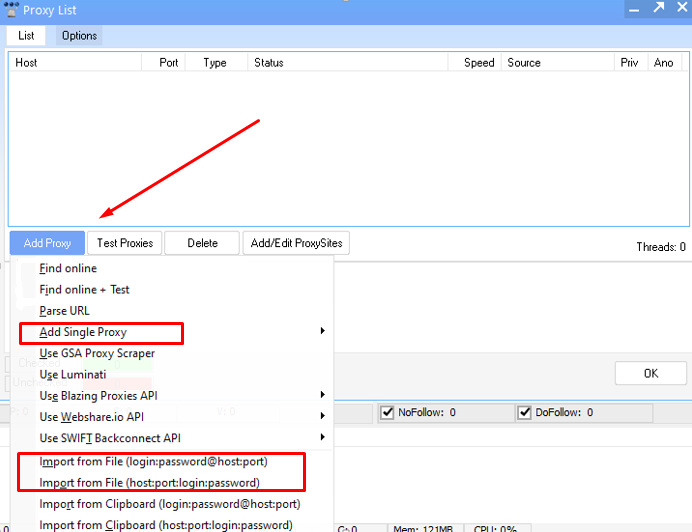
Inside the configuration panel, click Add Proxy. You can:
Manual input is ideal for short-term use or isolated testing. For larger campaigns, importing bulk proxy lists ensures smoother integration. A properly loaded GSA Proxy becomes part of your active pool, available for assigned tasks.
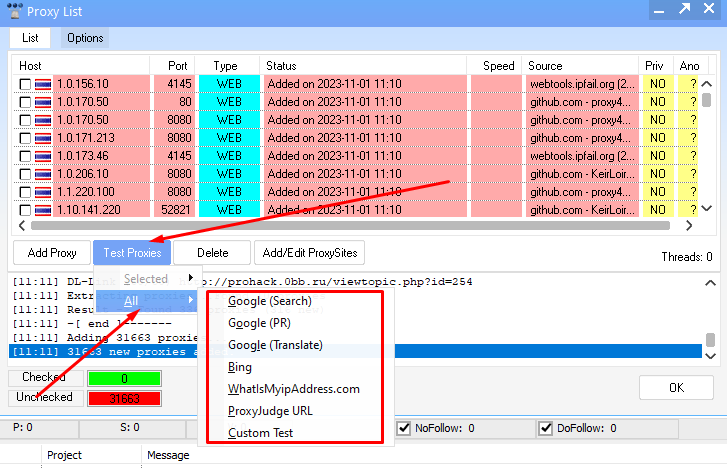
After adding your proxies, select Test Proxies to verify each IP. Choose between:
You’ll also choose a test source, such as Google or Bing, to confirm access status. This process identifies blocked or expired proxies. Inactive GSA Search Engine Ranker proxies should be removed or replaced to avoid delays in automation. Each GSA SER Proxy must pass the test to be reliably used in live campaigns.
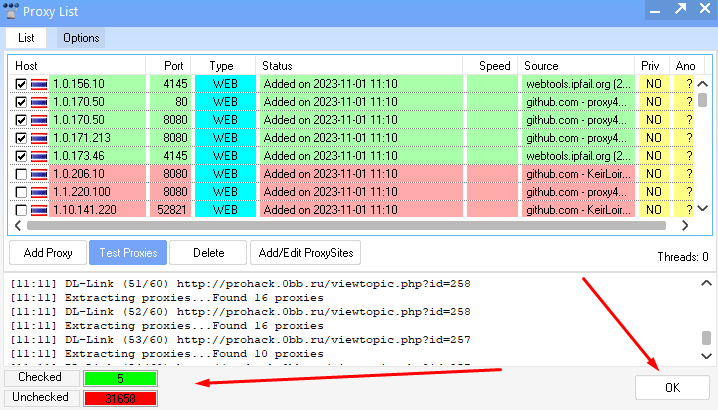
Once testing is complete, the results are displayed in a list. Successful connections are marked with green status indicators. Blocked or inactive proxies appear with error codes or failed status. Remove any non-functional entries, then click OK to save your working list.
The program will now route traffic through verified IPs for all selected activities. Correctly tested GSA Search Engine Ranker proxies are essential for bypassing restrictions and maintaining smooth automation across GSA tasks.
When using proxies for GSA Search Engine Ranker, stick to these best practices to get the best results:
Here’s a quick practical checklist for managing your GSA Search Engine Ranker proxies effectively:
Keeping up with this checklist will keep your projects running smoothly and reduce the chance of bans or blocks.
Errors with proxies are common when using GSA Search Engine Ranker. You may see timeouts, connection refused messages, or authentication failures in your logs. Here’s how to troubleshoot:
To diagnose if the issue is proxy-related or GSA SER configuration-related, remove the proxy from a test campaign. If the problem disappears, the proxy is likely the culprit.
If proxies get blocked by target sites or blacklisted, contact your provider for replacement proxies. Providers like Proxy-Seller offer quick swaps and 24/7 support to resolve these issues smoothly.
In regions with strict firewalls or geo-blocking, optimize your proxy settings by choosing proxies from allowed locations and using protocols like SOCKS5 for better bypassing.
Following these tips will help you maintain healthy proxy connections and keep your GSA Search Engine Ranker campaigns effective without interruptions.
Using proxies with GSA Search Engine Ranker ensures long-term reliability and consistency in SEO operations. Whether managing backlink campaigns or automating submissions, a properly integrated setup helps avoid access issues and protects your local connection from bans or detection.
Accurate setup of your GSA SER Proxy Settings guarantees that automation tasks proceed smoothly without triggering blocks. Once confirmed, your GSA SER Proxy Configuration becomes the foundation of stable and scalable SEO performance.

 PHP
PHP Node.js
 Python
 Java
Java Golang
 en
en  Español
  中國人
中國人  Tiếng Việt
  Deutsch
  Українська
  Português
  Français
  भारतीय
  Türkçe
  한국인
한국인  Italiano
  Indonesia
  Polski
Comments: 0