

Ubuntu is a Debian GNU / Linux operating system with an interface similar to the usual Windows users. It is used on PC laptops and servers. Which means that it also needs to configure a proxy server. In Ubuntu, this process has certain features that you should be paying attention to in the following recommendations.

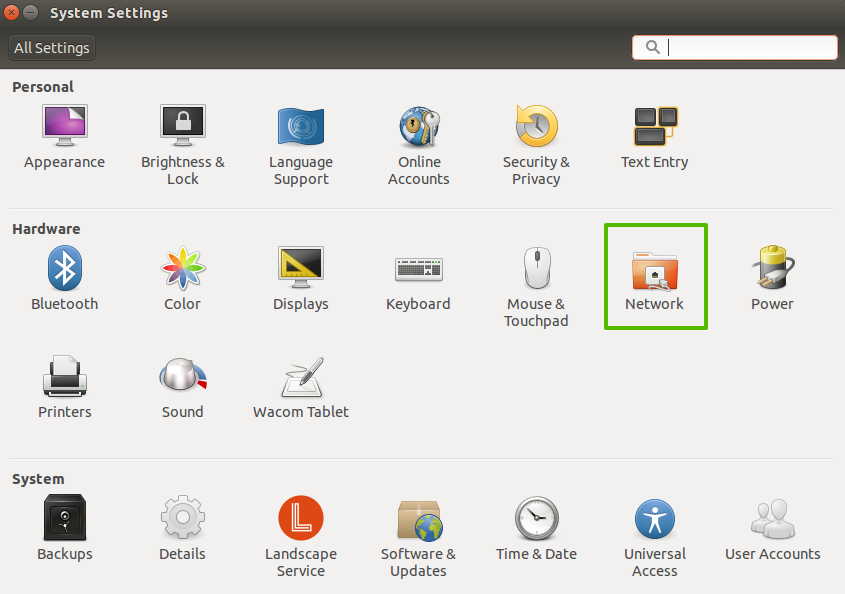
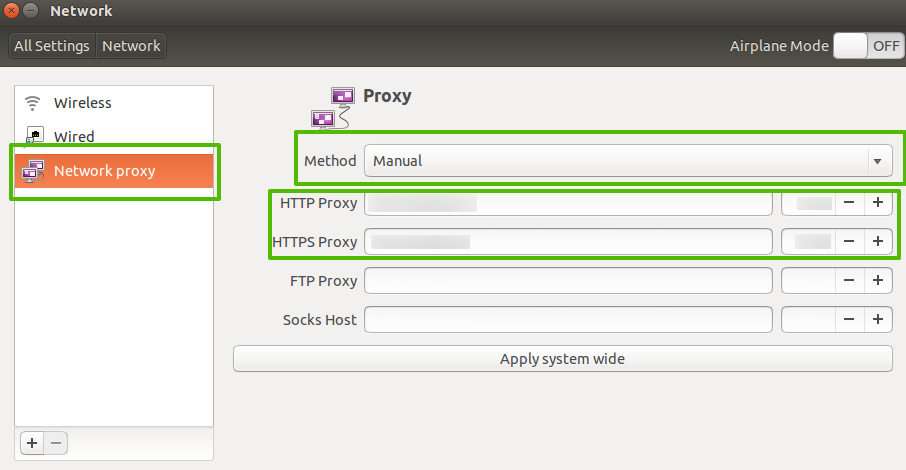
To activate the settings, you must perform a complete reboot.
You can refine the configuration using the command: wget -q0 - eth0.me or wget google.com

You’ll learn about three main types of proxy configurations in Ubuntu proxy setups: system-wide, user-specific, and application-specific. Each type serves different needs.
System-wide proxy settings apply to all users and processes on the machine. You set proxies here when you want every application, user, and service to route traffic through the proxy. This offers consistency and control but requires administrator access and sometimes a system reboot or session restart to activate changes.
| Configuration File/Location | Purpose |
|---|---|
| /etc/environment | Sets environment variables system-wide. |
| /etc/apt/apt.conf.d/ | Holds APT proxy settings (package manager). |
| /etc/profile.d/ | Scripts for shell environment setup (runs at login). |
| /etc/profile | System profile scripts. |
Advantages:
Disadvantages:
Note how systemd services often read environment variables from service files or drop-in configurations under /etc/systemd/system/. These proxy settings often require restarting the services to apply changes, but not a full reboot.
User-specific proxy settings are set for individual users, affecting only their sessions or shells. Configure these when only selected users need proxy access or different proxy rules.
| Configuration File | Scope |
|---|---|
| ~/.bashrc | Shell startup script (applies to new terminals). |
| ~/.profile | Executed upon login (for terminal and non-terminal sessions). |
| ~/.bash_profile | Alternative login shell script. |
Advantages:
Disadvantages:
Application-specific proxy settings directly configure individual programs to use a proxy. Use this when only certain applications must use a proxy or require different proxies. This is done by editing app configuration files or by command-line options.
Advantages:
Disadvantages:
Use command line proxy configuration on servers, headless systems, or when scripting automation. You control proxies by setting environment variables, which many tools respect.
The main proxy environment variables are:
You’ll typically set NO_PROXY to exclude localhost, internal IP ranges, or specific domains. For example: NO_PROXY="localhost,127.0.0.1,192.168.0.0/16,mycompany.local"
To set these variables temporarily for your current shell session in the Ubuntu terminal proxy, run:
To make these permanent:
After making changes, reload the shell environment with source ~/.bashrc or open a new terminal window.
APT package manager requires proxy configuration on its own. Create or edit /etc/apt/apt.conf.d/95proxies and add:
Although APT can use environment variables, apt.conf offers better reliability.
At this point, you can integrate Proxy-Seller easily. Proxy-Seller offers reliable, fast proxies supporting SOCKS5 and HTTP(S). Their network includes over 20 million residential IPs, ISP proxies, mobile proxies, and datacenter proxies. Whether you manage Ubuntu proxy server setups or automation scripts, Proxy-Seller scales with your needs.
Use Proxy-Seller's dashboard or APIs to manage proxy credentials. Then add those credentials to your export commands or proxy config files. This boosts reliability and security in your proxy setup, ensuring compliance and trustworthiness.
Configuring Proxy for Specific Applications in Ubuntu
You can configure proxy settings individually for applications to fine-tune traffic.
| Application | Configuration Method | Command/File Snippet |
|---|---|---|
| wget | Edit ~/.wgetrc or use command-line flags. | http_proxy = http://your.proxy.address:port/ |
| curl | Command line (-x) or persistent settings in ~/.curlrc. | curl -x http://your.proxy.address:port http://example.com |
| Git | Use specific global config commands. | git config --global http.proxy http://your.proxy.address:port |
| npm | Use specific config commands. | npm config set proxy http://your.proxy.address:port |
| Docker | Needs proxy settings in docker.service.d/http-proxy.conf and environment variables. | Refer to Docker documentation. |
For HTTPS, use the corresponding variables or commands (e.g., https_proxy or git config --global https.proxy). You can unset or modify Git settings with git config --global --unset http.proxy.
Browsers like Firefox and Chrome manage proxies internally or via OS settings. Refer to their documentation.
Check each application’s manual pages for exact proxy instructions. Configuring proxies app-by-app ensures precise control when system-wide or user-specific proxy settings are unsuitable or unavailable.
The problems that arise configuring proxies in Ubuntu can be the following nuances, which should be paid special attention:
Regardless of the chosen configuration method, integrating a reliable provider like Proxy-Seller can enhance your setup with fast, secure SOCKS5 and HTTP(S) proxies, boosting reliability and security.
Ultimately, understanding the features and limitations of each method – from graphical settings to environment variables in files like /etc/environment and ~/.bashrc – allows Ubuntu users to establish a robust and tailored proxy solution. By paying attention to nuances like application-specific requirements and the need for IP-based authorization, you can overcome potential problems and ensure seamless proxy integration.

 PHP
PHP Node.js
 Python
 Java
Java Golang
 en
en  Español
  中國人
中國人  Tiếng Việt
  Deutsch
  Українська
  Português
  Français
  भारतीय
  Türkçe
  한국인
한국인  Italiano
  Gaeilge
  اردو
اردو  Indonesia
  Polski
Comments: 0