 Proxy for Telegram
 Proxy for LinkedIn
 Proxy for Google
 Proxy for Ebay
 Proxy for Twitter
 Proxy for TikTok
Setting up a proxy in WhatsApp on both iOS and Android

WhatsApp is a widely used social app for smartphones and PCs. It allows users to send text and voice messages, images, and videos, as well as make video calls.
Both the mobile and desktop versions of WhatsApp are working with private proxies, allowing users to bypass regional blocks and add an extra layer of anonymity. Proxies act as intermediaries between the device and WhatsApp servers. When a proxy is set up correctly, the real IP-address is replaced with the proxy server's IP address.
The app developers state that WhatsApp doesn't support the use of private proxies. Instead, users can use public proxy servers running on ports 80, 443, or 5222. However, internet connections through these ports may not always work. Considering these limitations, it's advisable to configure a proxy for the entire system rather than specifically for WhatsApp traffic. For stable and properly configured connections, you can refer to a Whatsapp proxy that supports ports and authentication compatible with the app. For detailed instructions, refer to the guide below:
Setting up a proxy in WhatsApp on iOS
- Navigate to the “Settings” menu (indicated by a gear icon). Select the “Wi-Fi” section. Note that proxies work only with wireless networks, not mobile data.

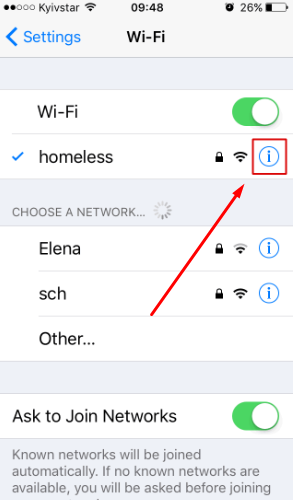
- Tap the “i” next to the name of your “Wi-Fi” network.
- Scroll down and tap on “HTTP PROXY”. By default, the proxy connection is inactive.
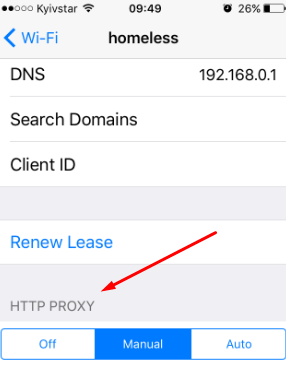
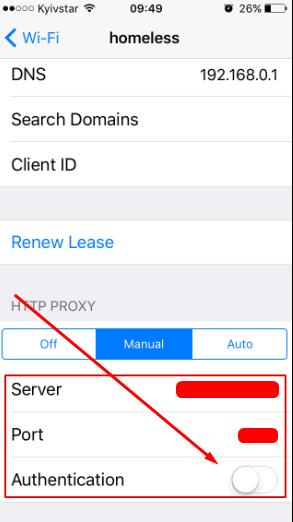
- Switch to manual mode by selecting “Manual” instead of “Auto” and enter your proxy server's data: IP-address and port.

- If you're using private proxies, toggle “Authentication” and enter your username and password.
To ensure the proxy is working, restart WhatsApp and try to download or send a file or message. The same iOS system-level approach works for other messengers as well. For users managing multiple social platforms, dedicated proxy solutions — such as WeChat proxy, Tinder proxy, or Snapchat proxy - help maintain stable connections and consistent account performance.
How to set a proxy in WhatsApp on Android
Recent versions of WhatsApp offer options to set up a proxy server inside the application, but their effectiveness is uncertain. In this guide, we will configure the proxy server at the Android device level, allowing all application browsers, including WhatsApp, to use a private proxy.
It's important to note that private proxies do not function when connected to mobile networks. It's necessary to switch to “Wi-Fi”. If you intend to use mobile Internet, consider purchasing mobile proxy LTE specifically for WhatsApp on Android.
- Open the Settings menu on your Android device.
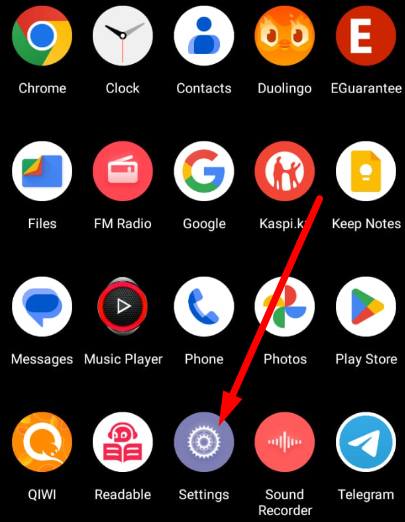
- Navigate to the “Network and Internet” section. The location of the wireless connections group may vary depending on your smartphone or tablet's version. It could be found within the “Network and Internet” section or directly in the general settings tab.
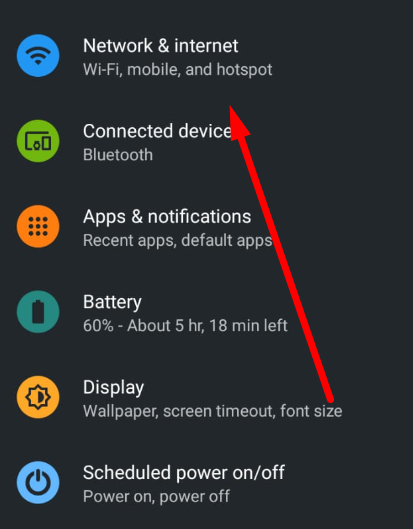
- Select the active network connection.
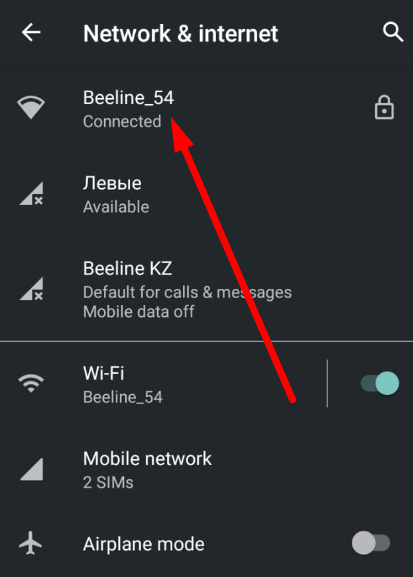
- Tap the edit icon (often a pencil icon) to make changes to the connection settings.
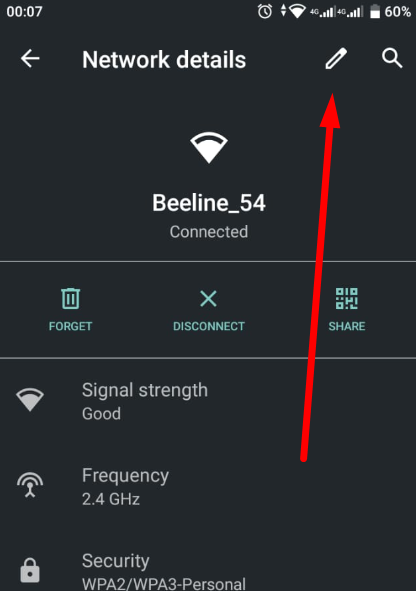
- To access advanced options, tap the arrow on the right side.
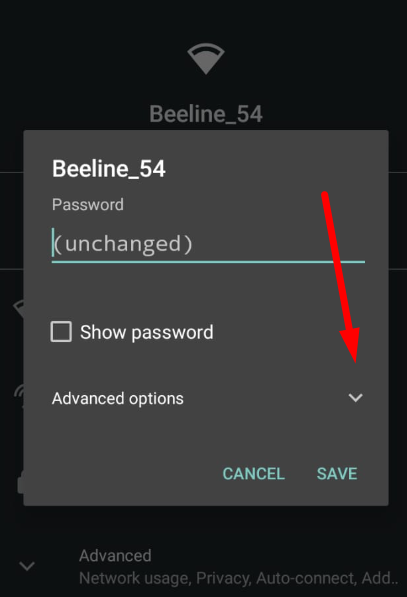
- Locate the “Proxy” tab and choose “Manual”.
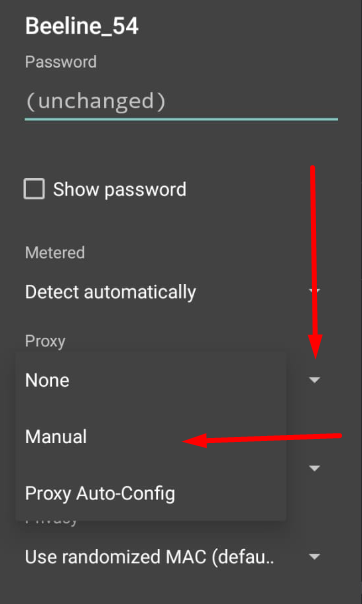
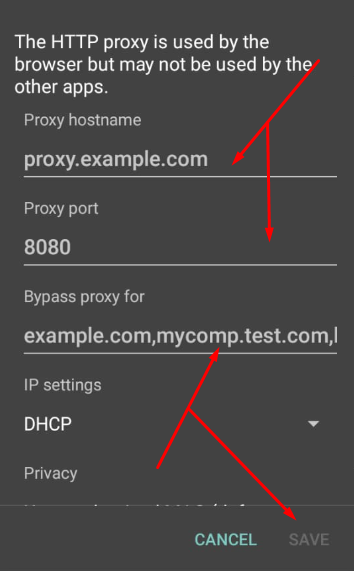
- In the next window, you'll need to enter the data of your proxy:
- Enter the IP or address in the “Proxy hostname” field. For example, “proxy.example.com” or “123.852.95.4” without quotes.
- Enter “8080” or another port without quotes in the “Proxy port” field.
- List the sites for which you do not need to use a private proxy in the “Bypass proxy for” field.
- Click the “Save” button to complete the setup.
For WhatsApp on Android and iOS, ISP proxy is the optimal choice, as it provides a stable static IP and supports long sessions without frequent reconnects. As an alternative, residential proxy with sticky sessions can be used, while mobile and datacenter proxies are not recommended for continuous WhatsApp use.
Your internet traffic will now be routed through a private proxy IP. To set up proxy servers in WhatsApp with login and password authorization specifically for the application, rather than for the entire system, you can use other applications like Drony.
PROXIES FROM $0.02/IP
Ready to put this into practice?
Pick a proxy type and location, and start using it within minutes.
Instant delivery
24/7 support
Refund policy
About the author