 Proxy for Telegram
 Proxy for LinkedIn
 Proxy for Google
 Proxy for Ebay
 Proxy for Twitter
 Proxy for TikTok
Kameleo browser review: features & proxy integration guide

Kameleo browser is an anti-detect solution built for developers and technical teams who need isolated browser environments at scale. It runs on Windows, macOS, and Docker, supports mobile devices on iOS and Android, and covers the full stack: web scraping, multi-account management, and browser automation via Puppeteer, Selenium, and Playwright. This review covers the key features, the updated pricing model, a step-by-step proxy setup guide, and how to automate sessions with Playwright and proxy in Kameleo.
Anti-detect browser review — Kameleo
Key Kameleo anti-detect browser features you should know
The Kameleo browser provides a complete environment for teams running parallel automated sessions. Every paid plan includes unlimited local profile creation, proxy assignment, and a REST API for automation.
Core capabilities shared across all plans include:
- Profile export and import
- Proxy configuration
- Support for Chrome, Edge, Firefox, and Safari fingerprints
- Cookie editor and import/export
- Mobile environments for Android and iOS
- Full API access for Selenium, Puppeteer, and Playwright integration
For teams building data pipelines or running concurrent scraping tasks, the Kameleo Developer Center provides SDK documentation, code samples, and API references.
Fingerprint management in Kameleo
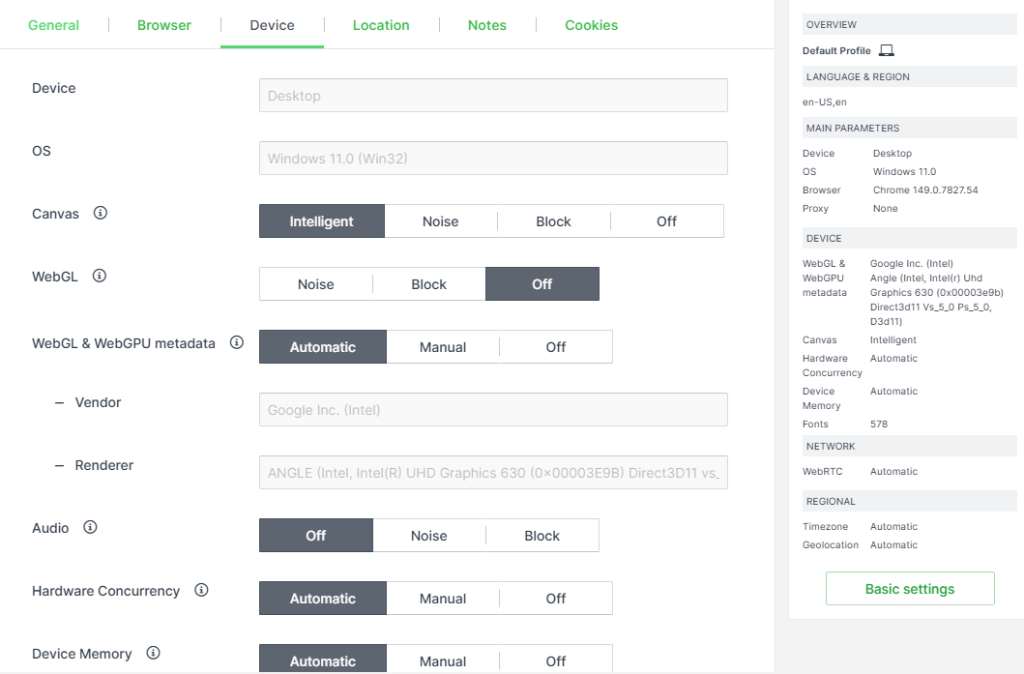
Kameleo browser gives you granular control over the browser fingerprint assigned to each profile. You can configure user agent (browser type and version), system language, fonts, screen resolution, and timezone.
Beyond the basics, the Kameleo fingerprint browser lets you manage:
- Canvas: modifies pixel-level rendering to prevent sites from fingerprinting your graphics pipeline.
- WebGL: masks GPU information used to identify your device.
- WebRTC: disabling it prevents your real IP from leaking even when a proxy is active.
- WebGL Meta: controls supplementary metadata that improves fingerprint uniqueness.
A key differentiator of the Kameleo anti-detect browser is that it ships two of its own rendering engines: Chroma (based on Chromium) and Junglefox (based on Firefox). When creating a profile, you choose which engine it runs on, which lets you distribute your fingerprints across both Chrome-based and Firefox-based user agents for more realistic session diversity.
Kameleo calls this Multikernel: at runtime, it downloads and loads the Chroma kernel version that matches the major Chrome version embedded in the selected fingerprint, and it can hold several engine builds at once, so different profiles run different kernels in parallel. A profile generated from a Chrome 147 fingerprint runs on Chroma kernel 147. New Chroma kernels are released within 5 days of each stable Chrome release. This directly affects detection performance: the browser binary and the declared fingerprint stay in sync, which is one of the most common detection vectors on modern anti-bot systems.
Also, Kameleo publishes a weekly automated masking test at kameleo.io/masking-status-report, covering Pixelscan, Browserscan, CreepJS, Brotector, Cloudflare Turnstile, and Google Search. For teams evaluating detection performance before committing to a tool, this is verifiable evidence rather than vendor claims.
Teamwork & collaboration features
On all paid Kameleo browser plans, team members are not limited. Any number of users can collaborate within a single subscription: what you’re paying for is the number of concurrent browser sessions, not seats. All plans have role-based access management, session locking, and profile sharing, so you can partition access by team member or project without maintaining separate accounts.
Kameleo mobile browser environments
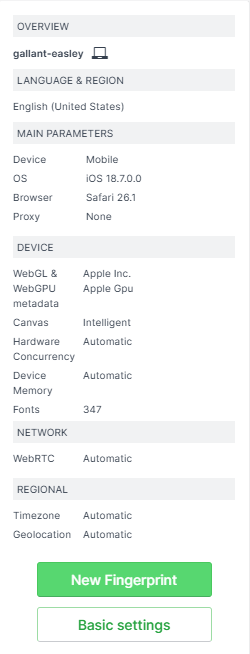
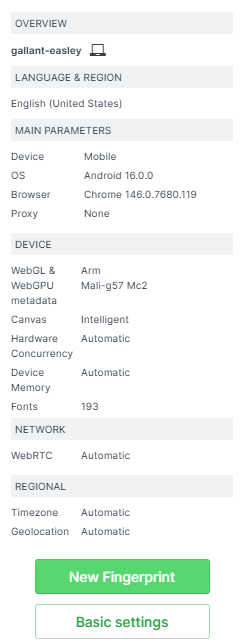
Kameleo browser delivers mobile emulation directly within its desktop application. This capability is powered by their proprietary Chroma engine, which automatically matches the optimal kernel for every profile. You simply select a mobile OS in Kameleo Desktop, and the system instantly emulates a real Android or iOS device right on your PC.
It masks Canvas, WebGL, audio fingerprints, and replicates natural touch or swipe gestures. This allows you to safely manage multiple accounts while keeping your cookies and session data preserved.
Kameleo review: browser pricing & plans
Kameleo browser pricing is based on the number of concurrent browser sessions: how many browser instances you can run in parallel at any one time. Team member seats are unlimited on all paid plans.
Free for €0/month
The free plan includes 2 concurrent browsers, 100 cloud profiles, and 300 minutes of browser usage time per month, with up to 3 team members. It also gives you access to both Chroma and Junglefox kernels and unlimited local storage. Enough to validate Kameleo browser against your target endpoints before committing to a paid tier.
Startup for €59/month
The Startup plan starts at 10 concurrent browsers and adds unlimited browser usage time, unlimited team members, and 5,000 cloud profiles. Local API access, Selenium, Puppeteer, and Playwright support are all included. Mobile emulation is available in a limited capacity for testing. It also adds cookie import/export, sharing, role-based access management, and session locking. The right entry point for a developer or small team ready to scale beyond the free tier’s concurrency and time limits.
Business for €299/month
The Business plan starts at 100 concurrent browsers and unlocks full emulated mobile browser access, along with a discount on additional concurrent browser slots. Built for teams running parallel scraping or multi-account workflows at meaningful scale.
Enterprise for €1,499/month
The Enterprise plan starts at 1,000 concurrent browsers and includes everything in Business, plus a 60-minute strategy call with Kameleo’s experts and further discounts on concurrent browser capacity. Suited for large-scale operations requiring maximum concurrency, dedicated support, and custom infrastructure configuration.
Kameleo browser interface overview
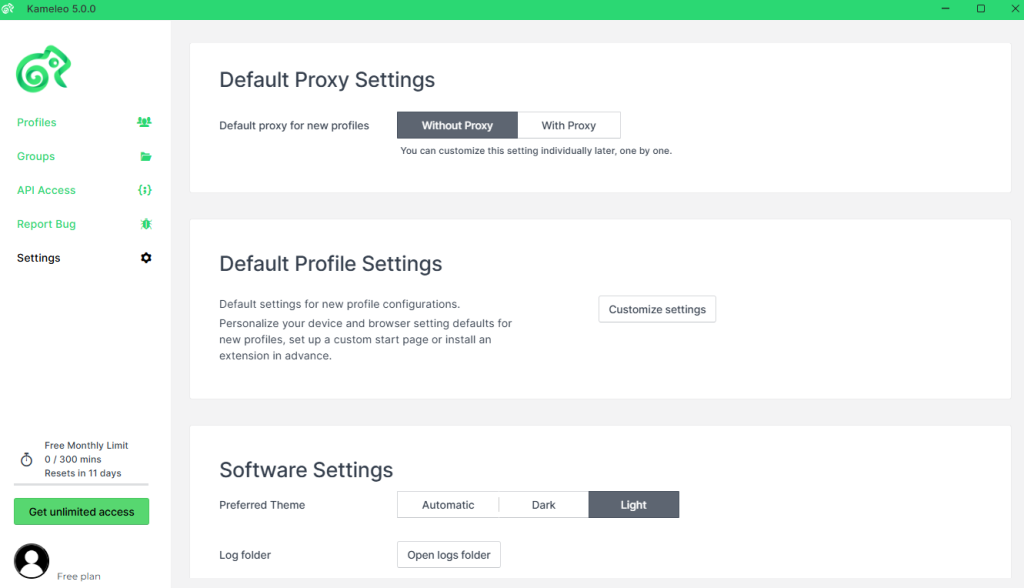
The Kameleo desktop interface is organized around a sidebar with several main sections: Profiles, Groups, API Access, Report Bug, and Settings.
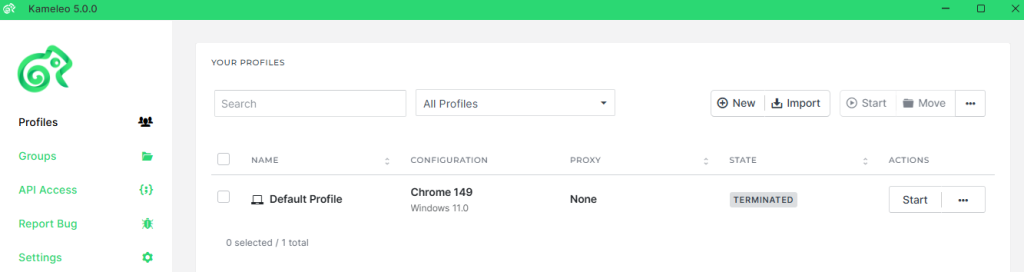
Profiles
It’s the primary working area. When creating a new profile, you select the OS, browser (Chrome, Firefox, Edge, or Safari), and language. Kameleo browser applies recommended fingerprint settings by default, with an Advanced Settings option for manual control over Canvas, WebGL, Audio, Hardware Concurrency, and location parameters, including Timezone, Geolocation, and WebRTC. Existing profiles can be launched, edited, duplicated, or exported from this view; each of them can have a proxy assigned individually.
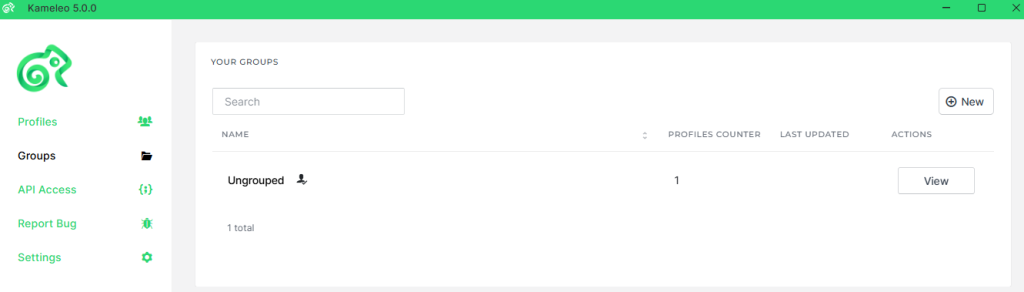
Groups
Groups handle organization and team access. New profiles always land in an Ungrouped folder by default. Groups let you organize environments by client or project, filter the list by group, and share access with team members. Permissions follow three roles: Admin (full control, including sharing), Analyst (can create, run, edit, and delete but cannot share), and Member (run only). Ungrouped cloud profiles are private by default, but Team Owners can view and manage all of them across the workspace, including those created by other team members.
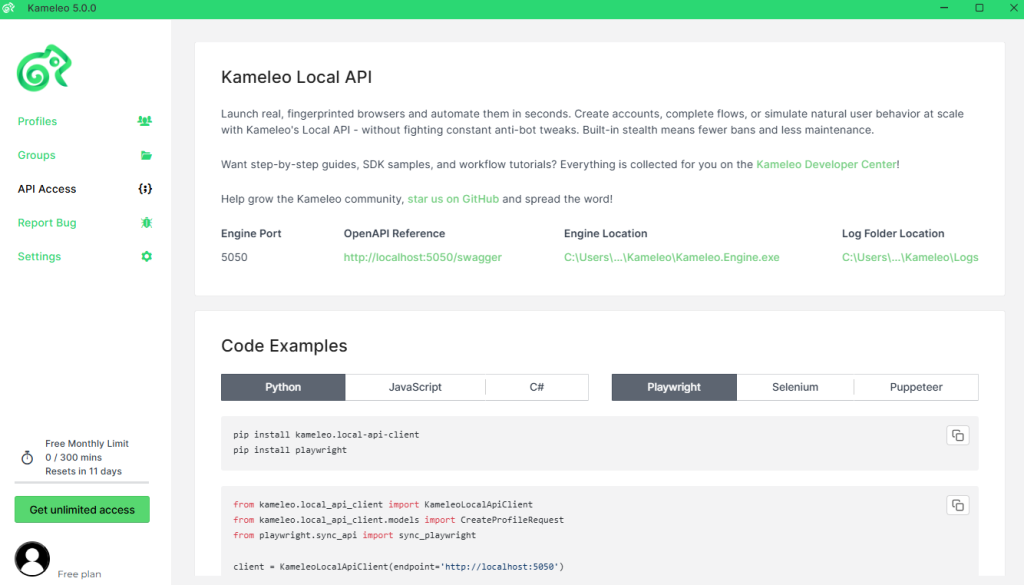
API Access
API Access exposes the local REST API endpoint and provides ready-made code snippets for connecting Playwright, Selenium, and Puppeteer to running Kameleo sessions. Proxy credentials and fingerprint parameters are configured in the profile before automation connects. The automation framework handles page interaction only.
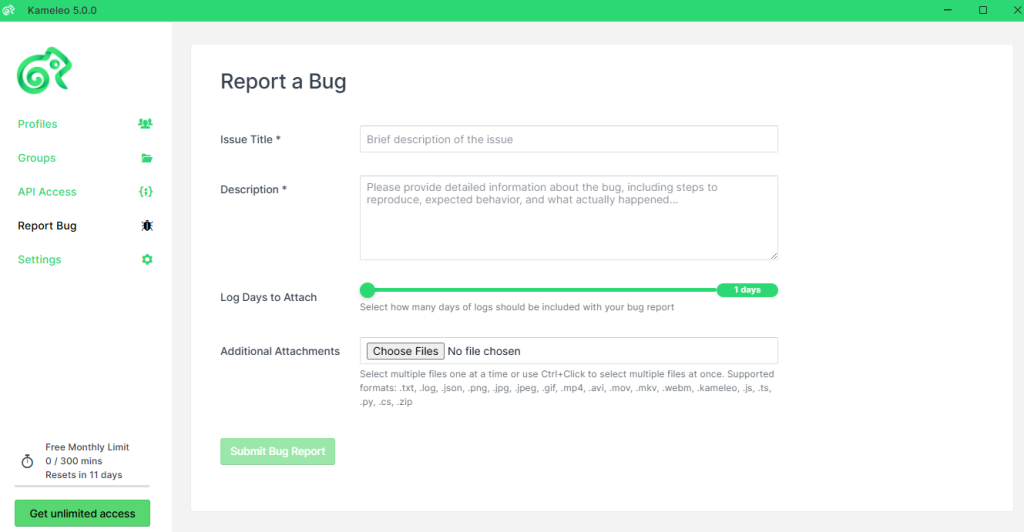
Report Bug
Report Bug is a built-in feedback tab that lets you submit issues directly from the desktop app without leaving the interface. The form includes an Additional Attachments field supporting a wide range of file formats, including .txt, .log, .json, .png, .jpg, .gif, .mp4, .kameleo, .js, .ts, .py, .cs, and .zip. Submitting sends the report directly to the Kameleo support team with the relevant log data attached.
Settings
Settings covers default profile parameters applied at creation time, making it useful when spinning up batches targeting a specific OS, browser, or fingerprint configuration, as well as general app preferences.
Step-by-step profile creation and Kameleo proxy integration
Proxies are configured locally rather than via a central dashboard or global settings. Here’s the full workflow from profile creation to proxy verification.
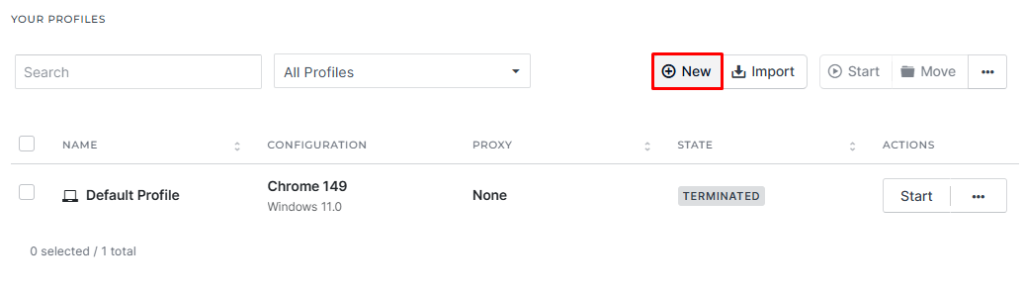
Step 1: Create a new profile
Click “New Profile” in the left-side menu.
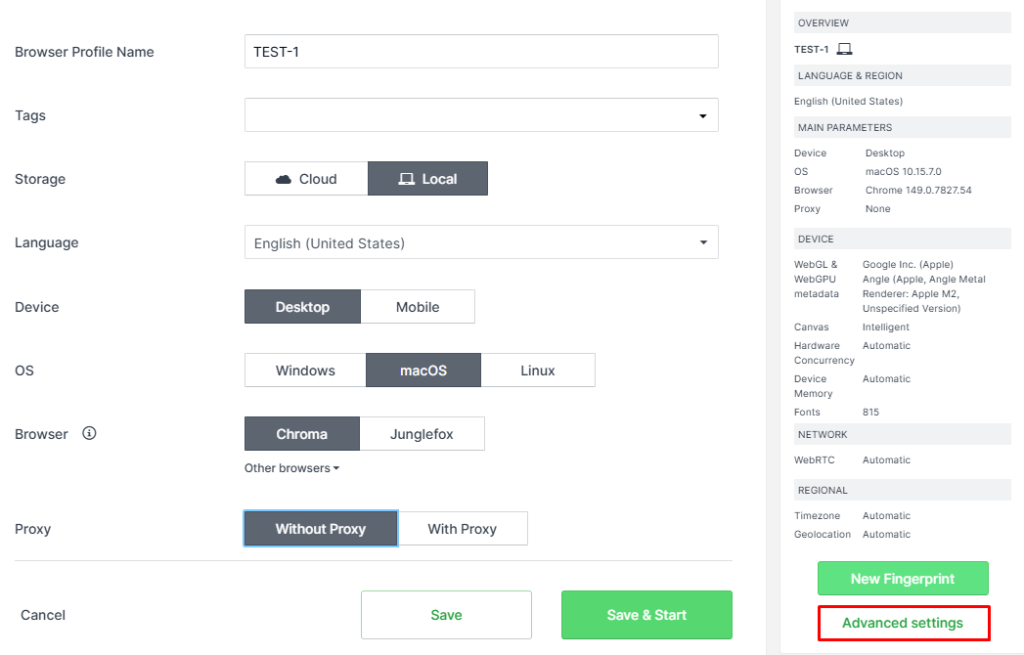
In the next window, select device type, OS, and browser kernel. After choosing parameters, the Kameleo browser suggests a pre-built template; if you don’t find it satisfactory, you can click the “Advanced Settings” button and edit it manually. At this stage, you can choose whether to run on Chrome or Firefox, allowing you to mix Chrome- and Firefox-based profiles to diversify your fingerprint pool across concurrent sessions.
Step 2: Configure proxy settings
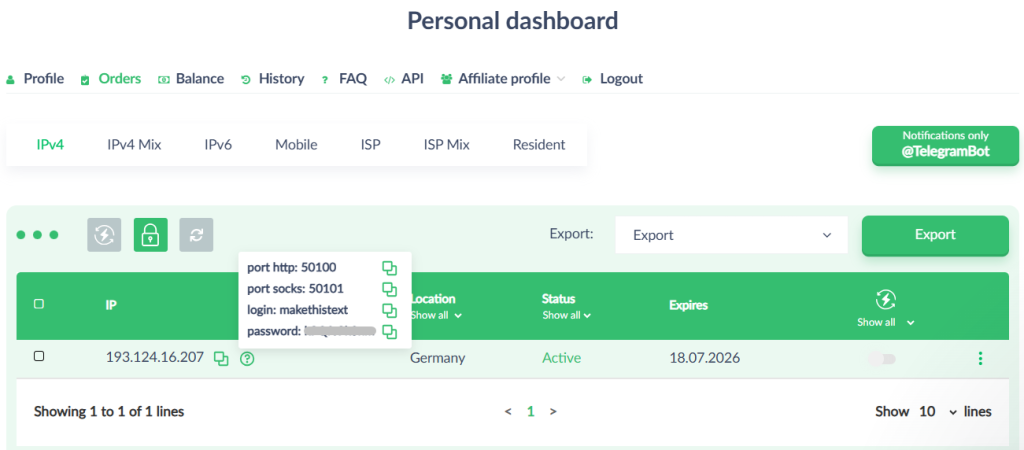
In the configuration window, locate the Proxy section. Switch from “Without Proxy” to “With Proxy.” Choose your protocol (HTTP/S or SOCKS5), then enter the IP address, port, username, and password.
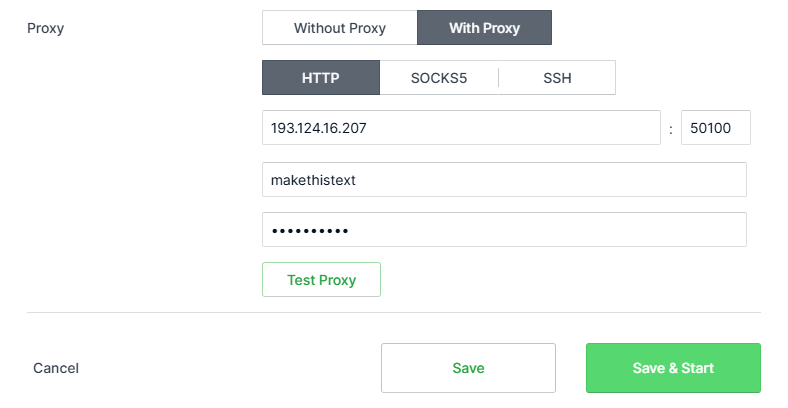
To get your proxy credentials, sign in to your proxy provider account and navigate to the Proxy Auth section. Copy the IP, port, login, and password from there into the corresponding fields in the Kameleo browser.
For teams using Proxy-Seller’s IPs, the credentials are available in the dashboard under the Orders tab.
Proxy-Seller’s residential proxies support both rotating and sticky sessions, which maps directly to how Kameleo handles session identity: rotating for broad scraping, sticky for workflows that require a consistent IP across a session.
Step 3: Test the proxy connection
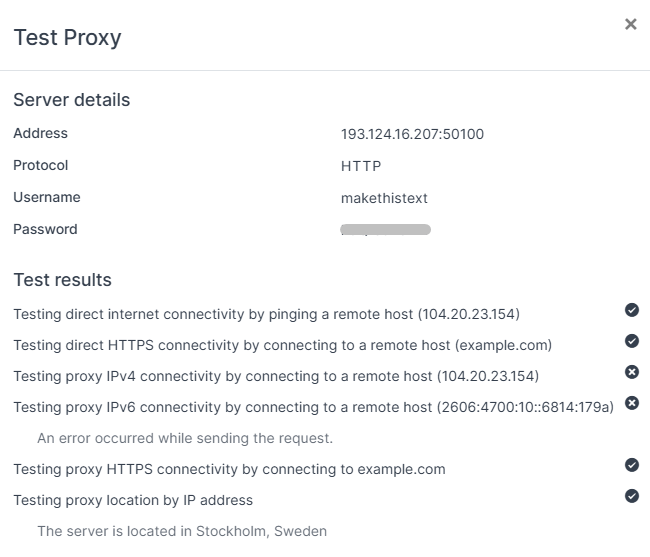
Click “Test Proxy.” The built-in checker runs a connection test and returns geolocation, trust score, and IP anonymity status in a separate window. Verify the result matches your intended target location before saving.
Step 4: Configure fingerprint details
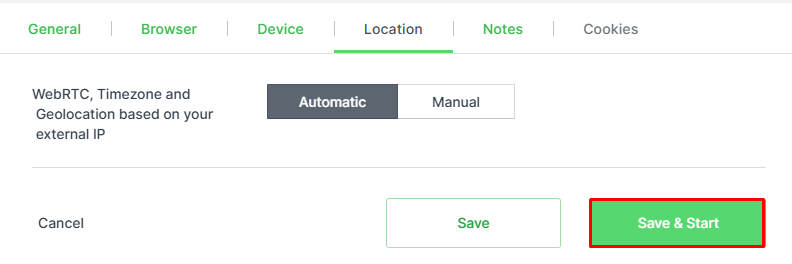
Before finalizing, review the Canvas, WebGL, and timezone settings located in the Advanced tab. Disable WebRTC: this prevents IP leakage regardless of proxy protocol. Set geolocation to automatic to ensure it reflects the proxy’s actual location rather than a hardcoded value that conflicts with it. Click “Save” to save the profile; click “Save & Start” to launch it.
How to choose the right Kameleo proxies
The right proxy type depends on what your pipeline is doing and what detection surface you’re targeting.
Datacenter IPv4 proxies work well for high-volume, lower-sensitivity scraping tasks: price monitoring, public catalog collection, or infrastructure testing where the target site doesn’t apply aggressive bot detection. They’re fast and cheap per IP, which makes them cost-effective for large concurrency. You can buy private proxy at Proxy-Seller starting from $1.64/month per IPv4.
Residential proxies are the right choice when you’re hitting sites with strict anti-bot layers. They route requests through IP addresses assigned to real user devices by internet service providers. On endpoints that reject datacenter traffic, residential IPs deliver a higher valid response rate: teams running SERP monitoring typically see +20–30% VRR uplift in A/B pilots. IPs from the residential pool are the default recommendation for SERP monitoring, social media automation, and marketplace scraping.
ISP proxies combine residential-level trust with datacenter-level stability and speed. The IP is registered to an ISP but hosted in a datacenter, which gives you consistent latency without the variability of rotating residential IPs. Useful for workflows requiring both speed and a clean reputation score.
Protocol selection. For standard browsing sessions and account authorization, use HTTP/S, which handles encrypted traffic and works correctly with most Kameleo anti-detect browser use cases. SOCKS5 is better suited for high-volume data transfer or workflows involving non-HTTP protocols. When in doubt, start with HTTP/S.
Best practices for using Kameleo with proxies
When running concurrent sessions, assign one proxy per profile and don’t share IP addresses across several operating in the same target account context. This is the most common source of cross-contamination that triggers account flags.
- Use sticky sessions when your workflow requires a consistent IP identity across a browsing session (e.g., multi-step checkout flows or account logins).
- Rotate proxies between sessions when you’re running high-frequency scraping against the same endpoint; matching the rotation interval to your request frequency reduces block rates.
- Verify credentials before launching a batch: a failed authentication at scale wastes compute and burns session time.
- Use the IP Check tool in the Kameleo browser to validate the trust score before assigning a new proxy for a sensitive task.
For teams running SERP scraping or price intelligence pipelines, Proxy-Seller’s ISP proxies from $3 deliver stable cross-marketplace coverage. For ad verification workflows that require geo-accurate mobile footprints, the residential pool of 220+ locations covers most major markets.
Automating browsing sessions with Playwright and Kameleo proxy settings
The Kameleo browser API exposes a Chrome DevTools Protocol (CDP) WebSocket endpoint for each running profile. All three frameworks connect to a live Kameleo session and drive it like a standard browser instance, so picking one comes down to the trade-offs covered in Playwright vs Puppeteer and Puppeteer vs Selenium.
Proxy integration with Kameleo in an automated workflow means the proxy is configured in the profile before the automation connects; you don’t pass proxy credentials to Playwright directly. The network layer is handled internally, while Playwright handles the page interaction layer.
Environment setup and connection
Install Playwright and its browser dependencies:
bash
pip install playwright
playwright install
Replace PORT with the port returned by the Kameleo API for your active profile. Always retrieve the CDP WebSocket URL from the API after starting it; the port is assigned dynamically. Hardcoding a port breaks across sessions.
python
import asyncio
from playwright.async_api import async_playwright

async def run():
    async with async_playwright() as p:
        # Connect to the running Kameleo profile via CDP
        browser = await p.chromium.connect_over_cdp("ws://localhost:PORT/ws")
        page = await browser.new_page()
        await page.goto("https://your-target-url.com")
        await page.wait_for_load_state("networkidle")
        # Your automation logic here
        await browser.close()

asyncio.run(run())
Here’s a practical automation checklist:
- Retrieve the latest CDP WebSocket URL from Kameleo before each session.
- Wait for networkidle before interacting with the page to avoid acting on partially loaded DOM.
- Wrap navigation in try/except blocks to log and retry on transient network errors.
- Use page.hover() before page.click() on interactive elements to simulate more natural mouse movement.
- Close sessions with page.close() and browser.close() when done.
- Stop the Kameleo profile via API after the session ends to free concurrency slots.
Stop losing budget to failed scraping sessions. Proxy-Seller routes requests through geo-specific residential and ISP pools to deliver clean data without manual retries. Clean dedicated pools, no mixed SMB traffic, endpoint-level logs. Buy residential proxies from $3.5/GB.
Be sure to check out our review of the Lalicat Anti-Detect Browser and other articles on our blog reviewing similar tools.
Conclusion
Kameleo is a technically mature anti-detect solution best suited for data engineering and automation teams that need consistent fingerprint diversity across Chrome and Firefox environments at scale. The weekly transparency report at kameleo.io/masking-status-report gives you a verifiable detection baseline before committing to any workflow.
For teams running Kameleo alongside Proxy-Seller infrastructure, the pairing works best in several scenarios. SERP monitoring and price intelligence pipelines benefit from rotating residential IPs assigned per profile. Kameleo’s session lock and sticky session support keep the IP-session pairing stable across multi-step requests.
For high-concurrency scraping where datacenter speed matters more than residential trust, Proxy-Seller’s ISP proxies pair well with Kameleo’s headless browser support and Playwright automation. Clean dedicated pools reduce block rates that would otherwise spike in shared-IP environments.
PROXIES FROM $0.02/IP
Ready to put this into practice?
Pick a proxy type and location, and start using it within minutes.
Instant delivery
24/7 support
Refund policy
About the author