

Today's investors and analysts use Google Finance information because it is current and accurate. Google Finance seems to be the most preferred place for having current financial data of all types, especially for stocks together with indices and market trends, since it gives more details about companies’ financial metrics. Python is the best language for web scraping. This post will help you learn how to collect data from Google Finance so that you can have all the necessary financial analysis tools.
You’ll use specific Python libraries and best practices to set up your scraping environment for Google Finance Python.
Install the packages you need with these commands:
Proxy-Seller is a trusted provider offering fast private SOCKS5 and HTTP(S) proxies. It supports residential, ISP, datacenter IPv4/IPv6, and mobile proxies. This variety ensures high anonymity and geo-targeting, vital for financial data scraping.
Proxy-Seller offers unlimited bandwidth up to 1 Gbps, multiple authentication methods, a user-friendly dashboard, and 24/7 support.
Integrate Proxy-Seller proxies with Requests by setting proxy parameters in your Python script. This improves your scraper’s reliability and helps you scrape Google Finance SERP data continuously.
Before you begin, make sure you have Python installed on your system. You will also need the libraries requests for making HTTP requests and lxml for parsing the HTML content of web pages. To install the required libraries, use the following commands on the command line:
pip install requests
pip install lxml
Next, we will explore the step-by-step process of extracting data from Google Finance:
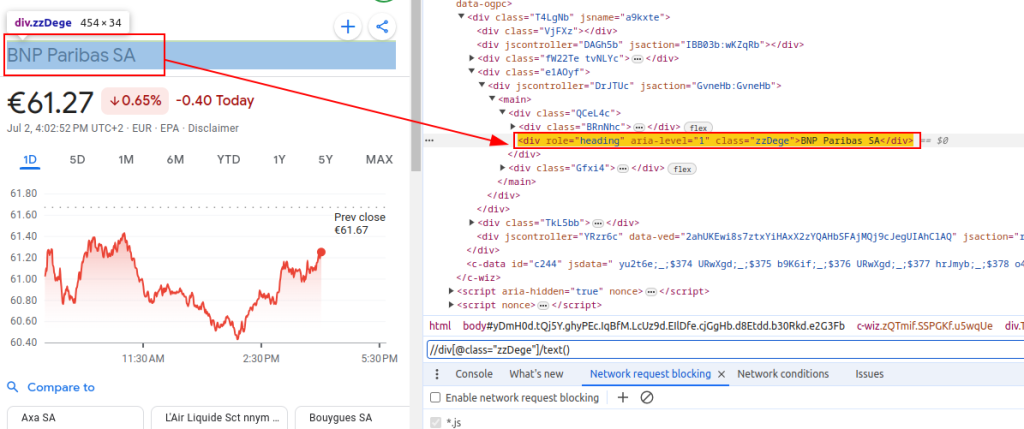
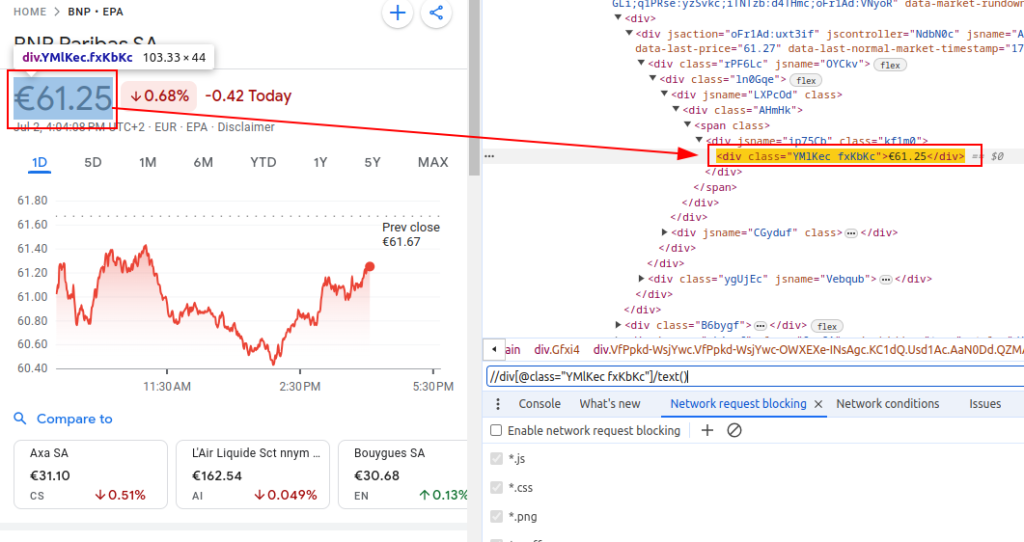
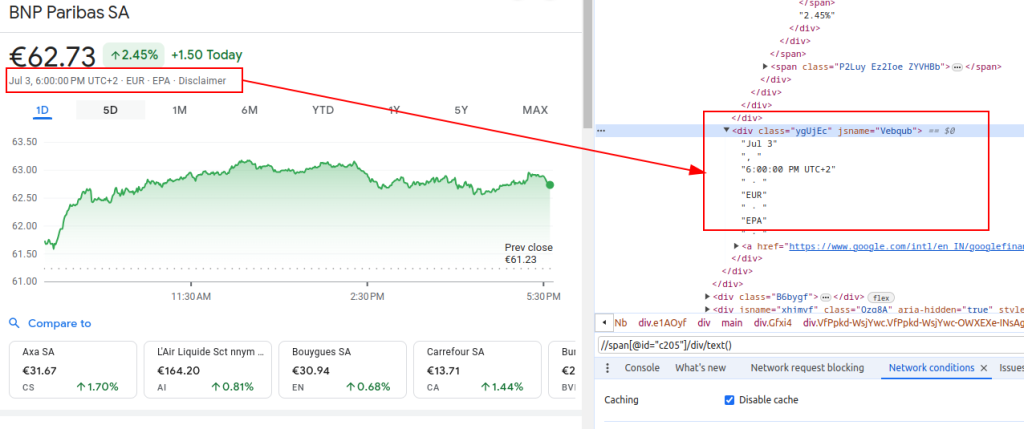
To scrape data from Google Finance, we need to identify the specific HTML elements that contain the information we're interested in:
These XPath expressions will serve as our guide to navigate and extract the relevant data from the HTML structure of Google Finance pages.
Title:
Price:
Date:
When setting up a scraper, it's crucial to focus on several important aspects to ensure efficient and secure data collection.
To fetch HTML content from the Google Finance website, we'll employ the requests library. This step initiates the process by loading the webpage from which we intend to extract data.
It is really important to use the right headers when web scraping, most notably the User-Agent header. The use of headers is essential in simulating a genuine browser request that will prevent the site from identifying and stopping your automatic script. They make sure that the server responds correctly by giving relevant information about the request. Absent proper headers, the request could be denied or the server may return completely different content or deliver content in portions that may restrict the web scraping activity. Hence, setting headers appropriately helps in maintaining access to the website and ensures the scraper retrieves the correct data.
import requests

# Define the headers to mimic a browser visit and avoid being blocked by the server
headers = {
    'accept': 'text/html,application/xhtml+xml,application/xml;q=0.9,image/avif,image/webp,image/apng,*/*;q=0.8,application/signed-exchange;v=b3;q=0.7',
    'accept-language': 'en-IN,en;q=0.9',
    'cache-control': 'no-cache',
    'dnt': '1',  # Do Not Track request header
    'pragma': 'no-cache',
    'priority': 'u=0, i',
    'sec-ch-ua': '"Not/A)Brand";v="8", "Chromium";v="126", "Google Chrome";v="126"',
    'sec-ch-ua-arch': '"x86"',
    'sec-ch-ua-bitness': '"64"',
    'sec-ch-ua-full-version-list': '"Not/A)Brand";v="8.0.0.0", "Chromium";v="126.0.6478.114", "Google Chrome";v="126.0.6478.114"',
    'sec-ch-ua-mobile': '?0',
    'sec-ch-ua-model': '""',
    'sec-ch-ua-platform': '"Linux"',
    'sec-ch-ua-platform-version': '"6.5.0"',
    'sec-ch-ua-wow64': '?0',
    'sec-fetch-dest': 'document',
    'sec-fetch-mode': 'navigate',
    'sec-fetch-site': 'none',
    'sec-fetch-user': '?1',
    'upgrade-insecure-requests': '1',
    'user-agent': 'Mozilla/5.0 (X11; Linux x86_64) AppleWebKit/537.36 (KHTML, like Gecko) Chrome/126.0.0.0 Safari/537.36',
}

# Define the URL of the Google Finance page for BNP Paribas (ticker BNP) on the Euronext Paris (EPA) exchange
url = "https://www.google.com/finance/quote/BNP:EPA?hl=en"

# Make the HTTP GET request to the URL with the specified headers
response = requests.get(url, headers=headers)When scraping Google Finance or any website at scale, it's crucial to use proxies. Here’s why:
# Define the proxy settings
proxies = {
    'http': 'http://your_proxy_address:port',
    'https': 'https://your_proxy_address:port',
}

# Make the HTTP GET request to the URL with the specified headers and proxies
response = requests.get(url, headers=headers, proxies=proxies)Once we have fetched the HTML content, we need to parse it using the lxml library. This will allow us to navigate through the HTML structure and extract the data we need:
The fromstring function from lxml.html is imported to parse HTML content into an Element object. The fromstring method parses response.text, the raw HTML from the web page fetched earlier, and returns an Element object stored in the parser variable, representing the root of the parsed HTML tree.
from lxml.html import fromstring

# Parse the HTML content of the response using lxml's fromstring method
parser = fromstring(response.text)Now, let's extract specific data using XPath expressions from the parsed HTML tree:
The title retrieves the financial instrument's title from the parsed HTML. The price retrieves the current stock price. The date retrieves the date. The finance_data dictionary contains the extracted title, price, and date. This dictionary is appended to a list.
# List to store output data
finance_data_list = []

# Extracting the title of the financial instrument
title = parser.xpath('//div[@class="zzDege"]/text()')[0]

# Extracting the current price of the stock
price = parser.xpath('//div[@class="YMlKec fxKbKc"]/text()')[0]

# Extracting the date
date = parser.xpath('//div[@class="ygUjEc"]/text()')[0]

# Creating a dictionary to store the extracted data
finance_data = {
    'title': title,
    'price': price,
    'date': date
}
# appending data to finance_data_list
finance_data_list.append(finance_data)To handle the scraped data, you might want to further process it or store it in a structured format like JSON:
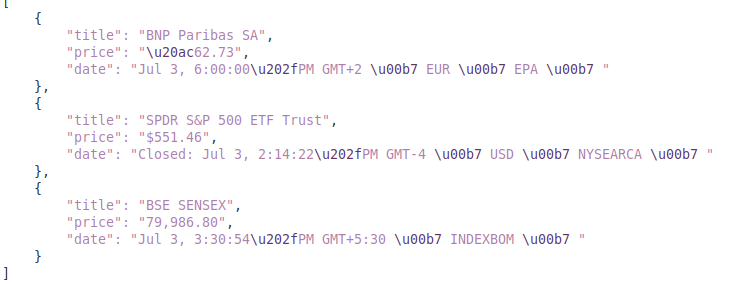
The output_file variable specifies the name of the JSON file where data will be saved (finance_data.json). The open(output_file, 'w') opens the file in write mode, and json.dump(finance_data_list, f, indent=4) writes the finance_data_list to the file with 4-space indentation for readability.
# Save finance_data_list to a JSON file
output_file = 'finance_data.json'
with open(output_file, 'w') as f:
json.dump(finance_data_list, f, indent=4)While scraping data from websites, it is important to handle request exceptions in order to ensure the reliability and robustness of your scraping script. These requests can fail for various reasons, such as network issues, server errors, or timeouts. The requests library in Python provides a way to effectively handle these types of exceptions, as shown below:
try:
    # Sending a GET request to the URL
    response = requests.get(url)

    # Raise an HTTPError for bad responses (4xx or 5xx status codes)
    response.raise_for_status()

except requests.exceptions.HTTPError as e:
    # Handle HTTP errors (like 404, 500, etc.)
    print(f"HTTP error occurred: {e}")

except requests.exceptions.RequestException as e:
    # Handle any other exceptions that may occur during the request
    print(f"An error occurred: {e}")
The try block wraps the code that may raise exceptions. The requests.get(url) sends a GET request. The response.raise_for_status() checks the response status code and raises an HTTPError for unsuccessful codes. The except requests.exceptions.HTTPError as e: catches HTTPError exceptions and prints the error message. The except requests.exceptions.RequestException as e: catches other exceptions (e.g., network errors, timeouts) and prints the error message.
Now, let's integrate everything to create our scraper function that fetches, parses, and extracts data from multiple Google Finance URLs:
import requests
from lxml.html import fromstring
import json
import urllib3
import ssl

ssl._create_default_https_context = ssl._create_stdlib_context
urllib3.disable_warnings()


# List of URLs to scrape
urls = [
    "https://www.google.com/finance/quote/BNP:EPA?hl=en",
    "https://www.google.com/finance/quote/SPY:NYSEARCA?hl=en",
    "https://www.google.com/finance/quote/SENSEX:INDEXBOM?hl=en"
]

# Define headers to mimic a browser visit
headers = {
    'accept': 'text/html,application/xhtml+xml,application/xml;q=0.9,image/avif,image/webp,image/apng,*/*;q=0.8,application/signed-exchange;v=b3;q=0.7',
    'accept-language': 'en-IN,en;q=0.9',
    'cache-control': 'no-cache',
    'dnt': '1',
    'pragma': 'no-cache',
    'priority': 'u=0, i',
    'sec-ch-ua': '"Not/A)Brand";v="8", "Chromium";v="126", "Google Chrome";v="126"',
    'sec-ch-ua-arch': '"x86"',
    'sec-ch-ua-bitness': '"64"',
    'sec-ch-ua-full-version-list': '"Not/A)Brand";v="8.0.0.0", "Chromium";v="126.0.6478.114", "Google Chrome";v="126.0.6478.114"',
    'sec-ch-ua-mobile': '?0',
    'sec-ch-ua-model': '""',
    'sec-ch-ua-platform': '"Linux"',
    'sec-ch-ua-platform-version': '"6.5.0"',
    'sec-ch-ua-wow64': '?0',
    'sec-fetch-dest': 'document',
    'sec-fetch-mode': 'navigate',
    'sec-fetch-site': 'none',
    'sec-fetch-user': '?1',
    'upgrade-insecure-requests': '1',
    'user-agent': 'Mozilla/5.0 (X11; Linux x86_64) AppleWebKit/537.36 (KHTML, like Gecko) Chrome/126.0.0.0 Safari/537.36',
}

# Define proxy endpoint
proxies = {
    'http': 'http://your_proxy_address:port',
    'https': 'https://your_proxy_address:port',
}

# List to store scraped data
finance_data_list = []

# Iterate through each URL and scrape data
for url in urls:
    try:
        # Sending a GET request to the URL
        response = requests.get(url, headers=headers, proxies=proxies, verify=False)

        # Raise an HTTPError for bad responses (4xx or 5xx status codes)
        response.raise_for_status()

        # Parse the HTML content of the response using lxml's fromstring method
        parser = fromstring(response.text)

        # Extracting the title, price, and date
        title = parser.xpath('//div[@class="zzDege"]/text()')[0]
        price = parser.xpath('//div[@class="YMlKec fxKbKc"]/text()')[0]
        date = parser.xpath('//div[@class="ygUjEc"]/text()')[0]

        # Store extracted data in a dictionary
        finance_data = {
            'title': title,
            'price': price,
            'date': date
        }

        # Append the dictionary  noto the list
        finance_data_list.append(finance_data)

    except requests.exceptions.HTTPError as e:
        # Handle HTTP errors (like 404, 500, etc.)
        print(f"HTTP error occurred for URL {url}: {e}")
    except requests.exceptions.RequestException as e:
        # Handle any other exceptions that may occur during the request
        print(f"An error occurred for URL {url}: {e}")

# Save finance_data_list to a JSON file
output_file = 'finance_data.json'
with open(output_file, 'w') as f:
    json.dump(finance_data_list, f, indent=4)

print(f"Scraped data saved to {output_file}")
Output:
You’ll start by inspecting the Google Finance page using your browser’s developer tools. This helps you find the HTML containers holding the stock data you want.
Within this container, identify these classes:
You’ll find these classes consistently across different stock pages. This makes extracting data reliable as long as the HTML structure remains stable.
Key data fields to scrape include:
Check carefully for these fields on the page. Always handle missing fields gracefully. If the HTML changes, implement fallbacks or alerts to update your scraper.
Keep in mind some content might load dynamically via JavaScript. This guide covers scraping static HTML only, so dynamic content may require advanced techniques not covered here.
Use soup.find_all() to find all elements with class gyFHrc. Each element corresponds to a data block containing a label and value.
Loop through these elements. For each one:
Here’s a concise example in Python:
data = {}
containers = soup.find_all(class_="gyFHrc")
for container in containers:
    label_elem = container.find(class_="mfs7Fc")
    value_elem = container.find(class_="P6K39c")
    label = label_elem.get_text(strip=True) if label_elem else None
    value = value_elem.get_text(strip=True) if value_elem else None
    if label:
data[label] = valueStoring data in a dictionary makes it easy to convert to JSON or CSV formats later. This helps when you want to export or analyze the scraped data.
Example output in JSON style:
{
"Previous Close": "150.25",
"Day Range": "148.00 - 151.50",
"Market Cap": "1.5T",
"P/E Ratio": "25.3"
}
For larger datasets, use pandas to convert the dictionary into a DataFrame and then export:
import pandas as pd
df = pd.DataFrame([data])
df.to_csv("stock_data.csv", index=False)
Add print statements or logging into your loop to debug and confirm your scraper works as expected during development.
Following these steps lets you scrape Google Finance Python effectively with Beautiful Soup and Requests, powering your financial data projects.
This guide offers a comprehensive tutorial on scraping data from Google Finance using Python, alongside powerful libraries like `lxml` and `requests`. It lays the groundwork for creating sophisticated tools for financial data scraping, such as a dedicated web scraping bot, which can be utilized to conduct in-depth market analysis, monitor competitor activities, or support informed investment decisions.

 PHP
PHP Node.js
 Python
 Java
Java Golang
 en
en  Español
  中國人
中國人  Tiếng Việt
  Deutsch
  Українська
  Português
  Français
  भारतीय
  Türkçe
  한국인
한국인  Italiano
  Gaeilge
  اردو
اردو  Indonesia
  Polski
Comments: 0