 Proxy for Telegram
 Proxy for LinkedIn
 Proxy for Google
 Proxy for Ebay
 Proxy for Twitter
 Proxy for TikTok
How to configure a proxy in “RDP” for a remote connection

Remote Desktop Protocol (RDP) allows remote access to another computer, making it ideal for system administration and collaboration.
Using proxies for "RDP" is very useful for several reasons:
- Security: Proxies enhance security by blocking unauthorized access during remote connections.
- Anonymity: They conceal the user's IP address, ensuring privacy during remote work.
- Bypass Restrictions: Proxies help overcome webpage blocks, greatly expanding capabilities when using RDP.
For long, stable remote sessions, a static ISP proxy can be a practical choice compared to short-lived or unstable pools.
How to set up proxy in “RDP”
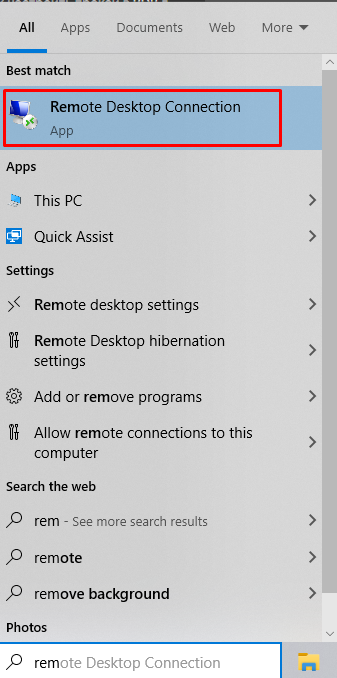
- To connect to the remote desktop, locate the item in the “Start” menu as depicted in the screenshot, then click on it.
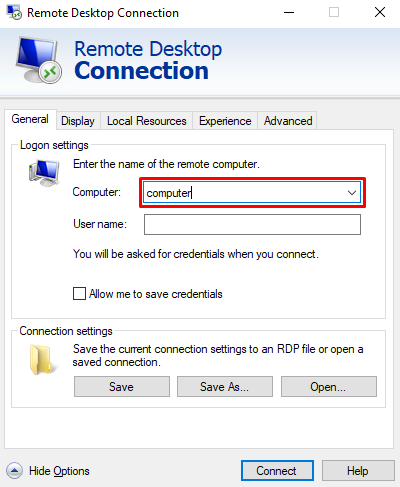
- In the "Computer" field, enter the details of the PC you wish to connect to. This includes either the IP address or the name of the PC on the local network. Then, click the "Connect" button.
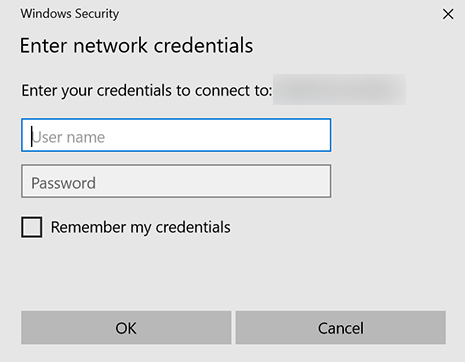
- Enter the username and password of the user for remote access.
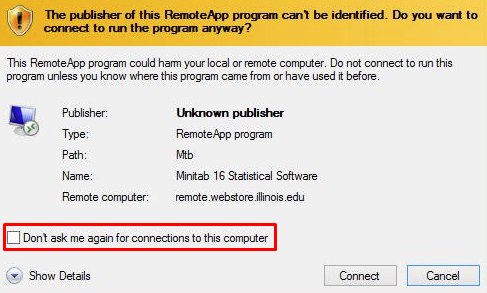
- Click the box next to the item in the screenshot, then click “Yes”.
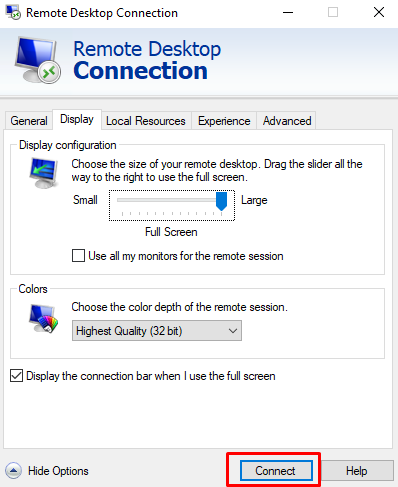
- Adjust the required parameters for the remote connection. If you prefer to keep all settings default, click on the “Connect” button.
After connecting to a remote device, let's consider setting up a SOCKS, HTTP, or HTTPS proxy in RDP. After connecting to a remote device, let's consider setting up a SOCKS, HTTP, or HTTPS proxy in RDP — for example, a proxy SOCKS5 for flexible routing. If you want to use a proxy in the browser through a remote desktop, configure it directly in the browser. We'll use Mozilla Firefox as an example.
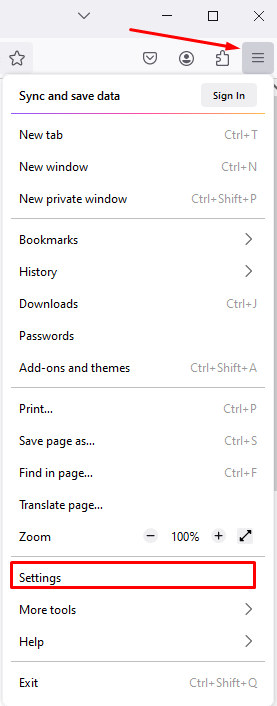
- Open the “Settings” section.
- In the settings, locate the “Network Settings” section (usually at the bottom of the menu). Click on the “Settings” button.

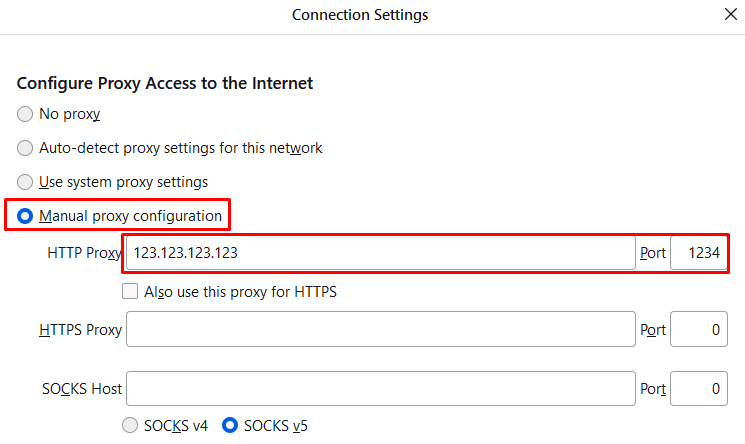
- Choose the “Manual proxy configuration” subsection. Enter the IP-address and port of your proxy. Save your settings by clicking “OK”. If your environment supports IPv6 addressing, you can buy IPv6 proxy access and enter the IPv6 address and port in the same fields.
- For private proxies, a window will appear at the top of the browser when you open a page, asking for your username and password. Enter these details. The authentication process will then begin, completing the proxy setup in “RDP”.
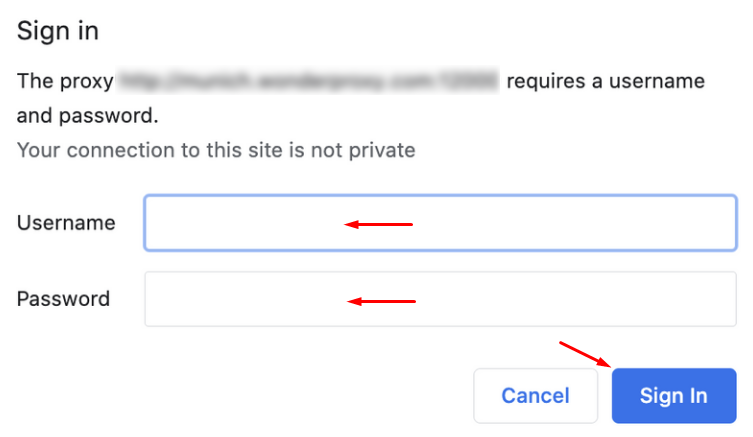
After completing these steps, you can be confident in the security of your connection. Using a proxy with RDP ensures that your data is encrypted effectively throughout your entire session of remote computer control.
PROXIES FROM $0.02/IP
Ready to put this into practice?
Pick a proxy type and location, and start using it within minutes.
Instant delivery
24/7 support
Refund policy
About the author