 Proxy for Telegram
 Proxy for LinkedIn
 Proxy for Google
 Proxy for Ebay
 Proxy for Twitter
 Proxy for TikTok
VMOS Cloud setup: connect your cloud phone to a Proxy-Seller proxy

A cloud phone can start successfully while its apps still use the wrong outgoing IP. For VMOS Cloud setup, creating the Android device is only the first part. You also need to configure the proxy, assign it to that device, and check the connection from inside Android.
Start with one cloud device and one proxy. Once you’ve confirmed the outgoing location and tested your app, repeat the configuration for other devices. This guide covers registration, device selection, proxy credentials, and the checks that help you separate connection errors from app problems.
What is a cloud phone, and how does it work with a proxy server?
A cloud phone is an Android OS environment that is accessed remotely and hosted on a provider’s servers. It has its own apps, storage, and settings. A proxy handles outgoing network requests from that environment. Together, they allow you to run Android apps remotely, via a selection of network locations, and test how they behave.
VMOS Cloud is a cloud phone based on ARM architecture, allowing you to run Android devices online through a browser or app. It provides both a standard cloud device and a high-end real machine; each environment has its own storage, device parameters, and network settings.
Key features include:
- Device selection: four standard configurations (V08, V06, V04, and V03) plus more than 202 real phone models in the high-end range.
- Android support: Android versions 10 to 17 (device-dependent).
- Automation: AI workflows powered by text prompts, prebuilt templates, a no-code RPA creator, and an API for custom integrations.
- Bulk actions: a synchronizer to execute the same actions on multiple devices.
- Team access: RBAC to assign devices and to manage team access.
Proxy-Seller is a proxy infrastructure provider that offers residential, ISP, datacenter, and mobile proxies. VMOS Cloud provides the Android environment, while Proxy-Seller provides the outgoing IP.
Typical uses of the VMOS Cloud phone service include testing an Android app, viewing authorized campaign content, or seeing public product pages in a particular market. For instance, a QA team might connect a cloud phone via a German proxy to see which ad creative shows up in a mobile app and if it takes them to the correct German-language landing page. The team may then run a retailer’s product page through German and US servers to compare euro versus dollar prices, stock availability, and shipping options.
Prepare your account, device requirements, and proxy credentials
Before you buy a cloud device, identify the app you’ll run and the country you need to test in. Check its Android requirements, then have the following ready:
- An email address, Google account, or Facebook account for registration
- A cloud phone plan or a trial allocation on hand
- An active proxy including host, port, username, and password for each country
- A session type suitable to your needs, for example, a sticky session
The VMOS Cloud interface manages the Android device. Your Proxy-Seller dashboard allows you to control the endpoint, geographic target, and rotation policy. Have them both handy during install so you can verify the credentials without going back and forth in the order email.
Register your account and review the available cloud phone plans
Use the VMOS Cloud web version for the initial setup if you prefer working in a browser. The official registration instructions document email registration and sign-in through Google or Facebook.
Step 1: Register by email or use your existing sign-in account
Follow these steps to register by email:
- Go to the official website, then click the online trial or login/register option.
- Select email sign-up and type in an email address you own.
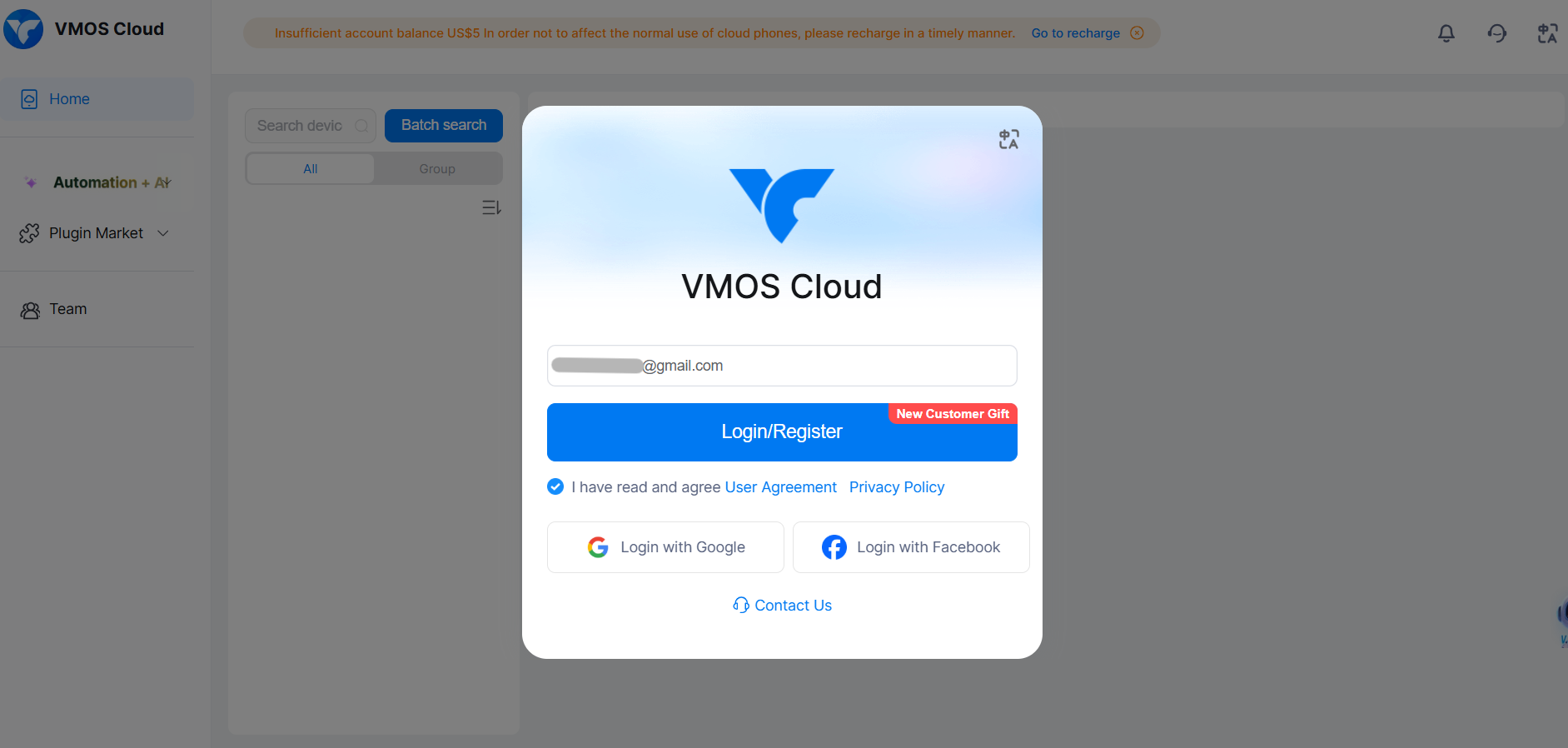
- Get your six-digit verification code in your inbox. Check spam if it hasn’t arrived.
- Type in the code.
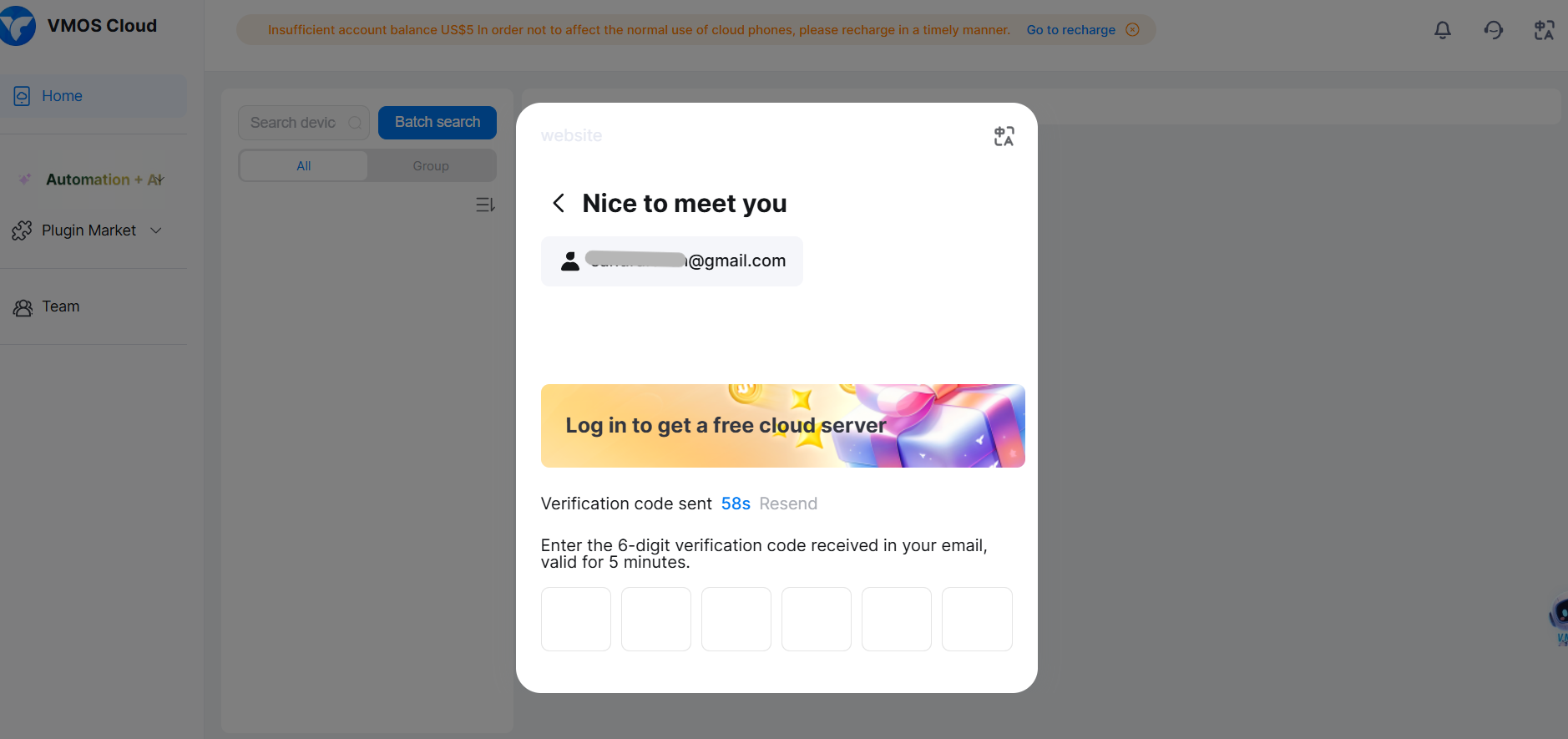
To sign in using Google or Facebook, select the desired option, authenticate with the provider, and allow the requested permissions. After successful authorization, you will be redirected to the cloud phone dashboard. Use the same sign-in method for future visits.
Step 2: Compare device configurations and check the trial terms
Consider the RAM, storage, and cost to rent before topping up. VMOS Cloud offers the following monthly configurations; please confirm the price and specifications at the end under Buy/Renew before placing the order.
Device option | Listed monthly price (Auto renewal discount) | RAM | Storage | What to check before ordering |
Standard V08 | $4.99 | 4 GB | 20 GB | Minimum app RAM requirements; space for installation and cached data |
Standard V06 | $6.99 | 5.4 GB | 28 GB | Memory needed for your app alongside a browser or testing tools |
Standard V04 | $8.99 | 8 GB | 42 GB | RAM for concurrent apps; storage for test files and recordings |
Standard V03 | $10.99 | 10.7 GB | 56 GB | Peak memory usage during demanding tests; space for larger datasets |
High-end Real Machine | $11.99 | 12 GB | 56 GB | Pass Google Play Integrity, available phone model, Android version, and device-specific app compatibility |
VMOS Cloud pricing and subscription plans also include 90-day and annual options. You can confirm your configuration and rental period and see the total at checkout. Please note that the rental of your VMOS Cloud and the use of a third-party proxy are billed separately, and you may incur charges for these and other optional services.
The VMOS Cloud free trial gives new users temporary access to a cloud Android phone to try it out before purchasing a rental. To check the current offer, select the free online trial on the official website and register or sign in.
Create your first Android device and select its server location
Start with a single device that meets your app’s requirements. Note that menu wording can differ between language versions and clients.
Step 3: Choose your free-trial device
For new users, the platform offers a free trial device in a pop-up window. It appears in the dashboard once accepted.

For immediate testing or users who aren’t sure which configuration is perfect for their business, it’s best to choose a ready-to-ship configuration. Capacity may be limited for pre-orders or even after payment. The purchase screen currently offers Android 13, 15, 16, and 17. Check the minimum Android version in the app’s Google Play listing before you pay.

If you require more detailed configuration—such as time zone, device language, brand, device model, Android ID, GAID/Advertising ID, system fingerprint, IMEI, or Wi-Fi MAC address—please access the "Toolbox" within the cloud device or right-click to configure these settings.
Step 4: Wait for initialization and identify the correct device
After the purchased phone is provisioned, it should show in the device list. The vendor’s creation guide provides ballpark initialization times of one to five minutes. Don’t test it until the device is ready. (If the time is over 30 minutes, please contact official support.)
Write down the name or identifier of the device. You will need it when you assign the proxy, especially if you already have several devices registered in the account. Consider choosing a simple name like “Android QA Germany” to spot the target location of the test at a glance.
Without a proxy, the device uses the IP of its server region, which is Hong Kong by default. A bound proxy takes priority. Once the configured proxy is enabled, all the supported traffic will use its outgoing IP.
Connect a Proxy-Seller endpoint to your VMOS Cloud Android device
Configure one endpoint, add connection details, and connect to a specific device. The official proxy setup guide covers manual entry and use of HTTP, HTTPS, and SOCKS5 proxies. The walkthrough below demonstrates the use of separate fields so that credential errors are easier to detect.
Step 5: Prepare the proxy location, session policy, and endpoint
In your proxy dashboard, choose the location you need for your VMOS Cloud test. For Proxy-Seller’s residential connections, you can generate the proxy list with country, region, city, or ISP options. We offer sticky, interval-based, or per-request rotation around 220 locations and 47M+ ethically sourced IPs. Choose a sticky session if you want the outgoing IP to stay the same for a series of actions. Our residential proxies typically maintain sticky sessions for six to eight hours, up to 24 hours, as long as the source device stays online.
Copy the endpoint and authentication details. Remember that your proxy username and password are the endpoint credentials, which may not be the same as your website account login.
RESIDENTIAL PROXIES FROM $3.50/GB
Stop your cloud phone from switching IPs halfway through an app test.
Generate a proxy list for the exact country, region, city, or ISP you test in, and hold one residential IP with a sticky session for up to 24 hours. Paste the credentials into Add Proxy in VMOS Cloud and bind them to one device.
Step 6: Enter the proxy protocol and authentication details
In VMOS Cloud, open Proxy, then choose Add Proxy. VMOS Cloud proxy supports multiple proxies, but your choice must match your actual endpoint. Then, fill out the form with credentials from your Proxy-Seller dashboard. All you have to do is paste the proxy; the platform will automatically fill in the relevant credentials.
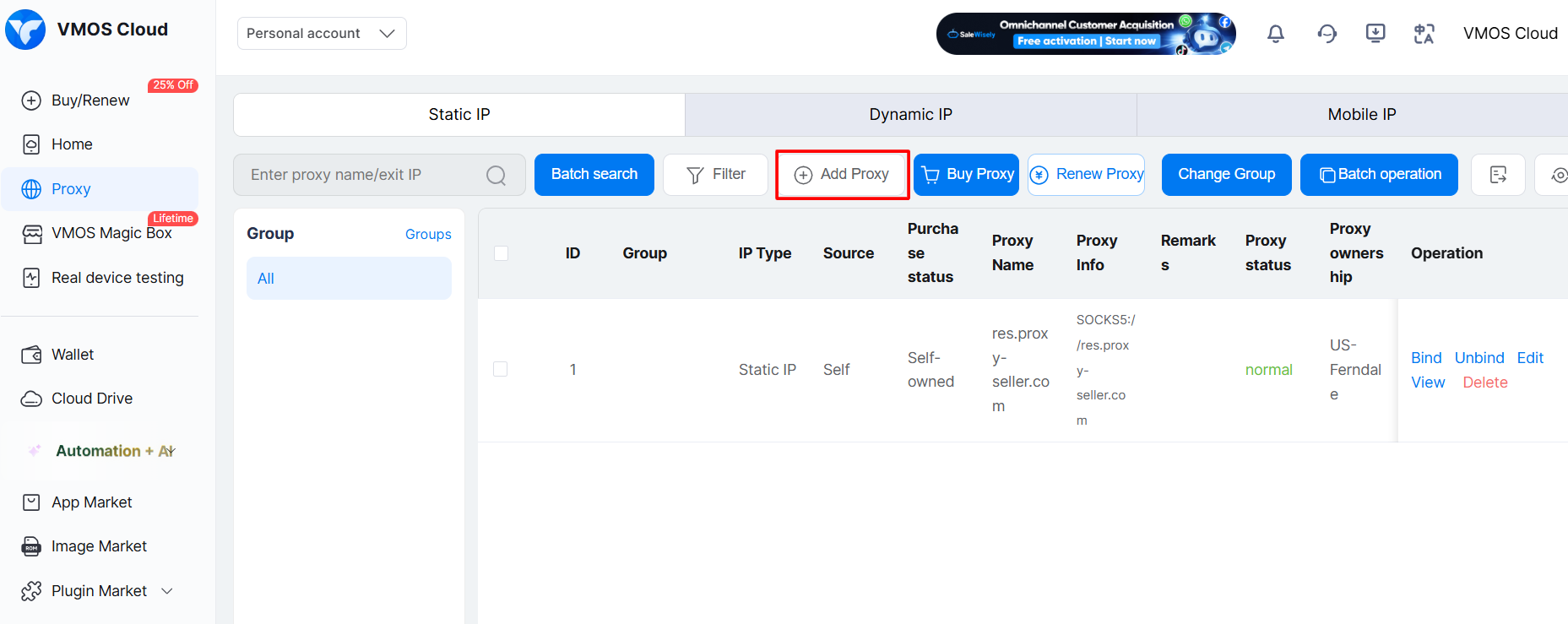
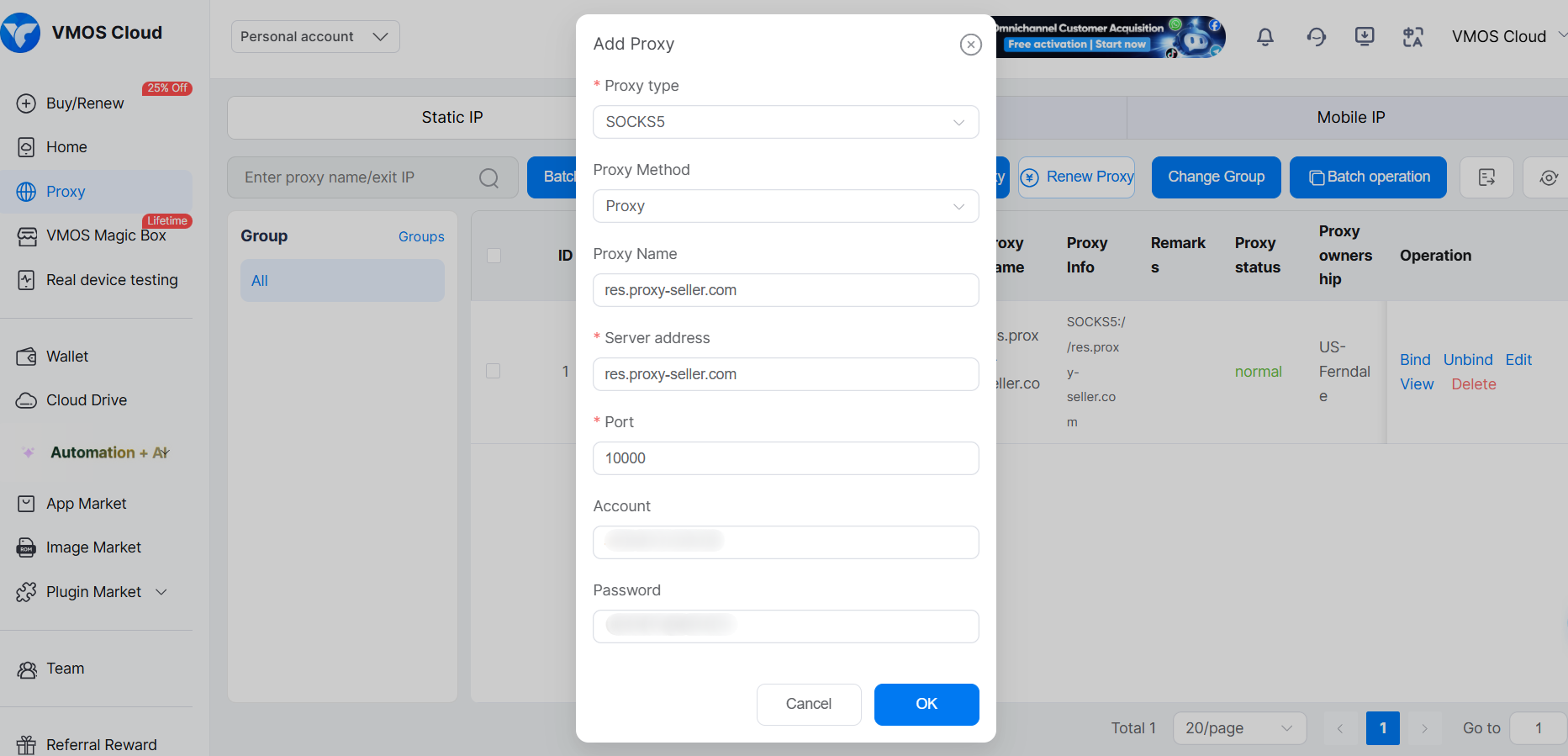
Step 7: Save the connection and bind it to the intended phone
Save the proxy entry in VMOS Cloud and bind it to the phone you created. The service documents a Bind action for associating proxy entries with devices: select the intended phone and confirm the association. Check the device identifier before accepting it.
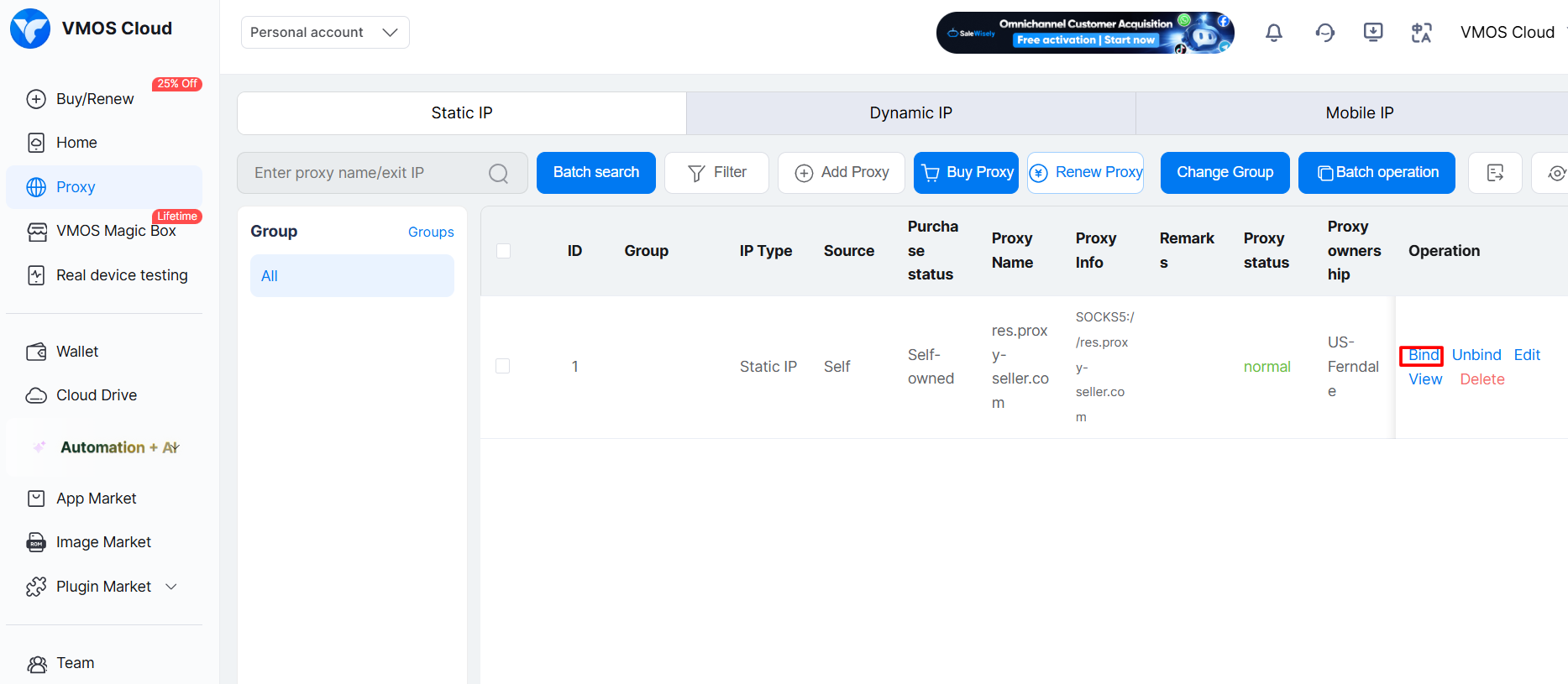
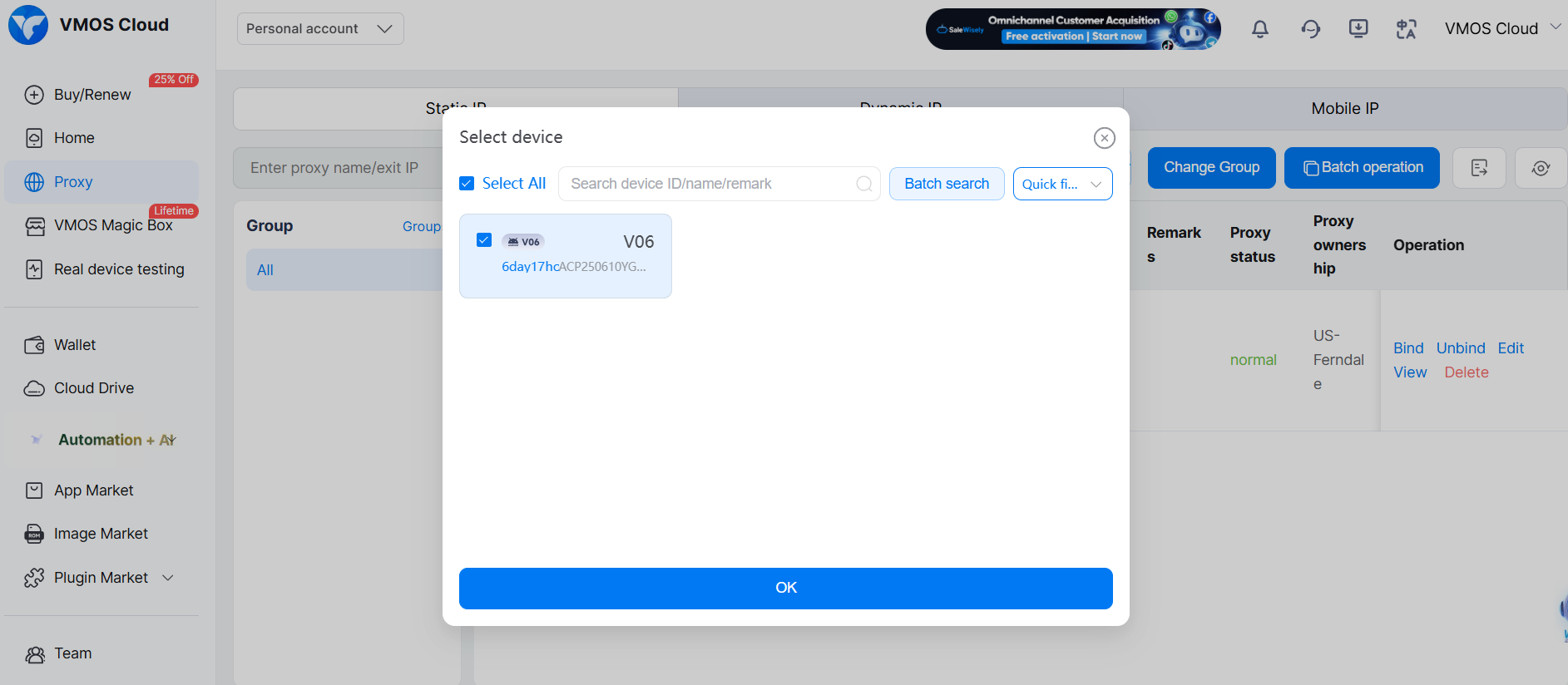
If you’re configuring several phones, use Add Bulk Proxies to add your own proxy endpoints together, saving time on entering connection details individually. Before binding a proxy, ensure you run the one-click detection check; the proxy is valid only when the status indicates success.

Verify the outgoing IP inside Android before running your apps
The final verification must be done within your VMOS Cloud device. When you open an IP checker in your computer’s browser, it checks the connection of your computer. It does not tell you which IP the remote Android browser or any other app is using.
- Open the browser inside the Android device.
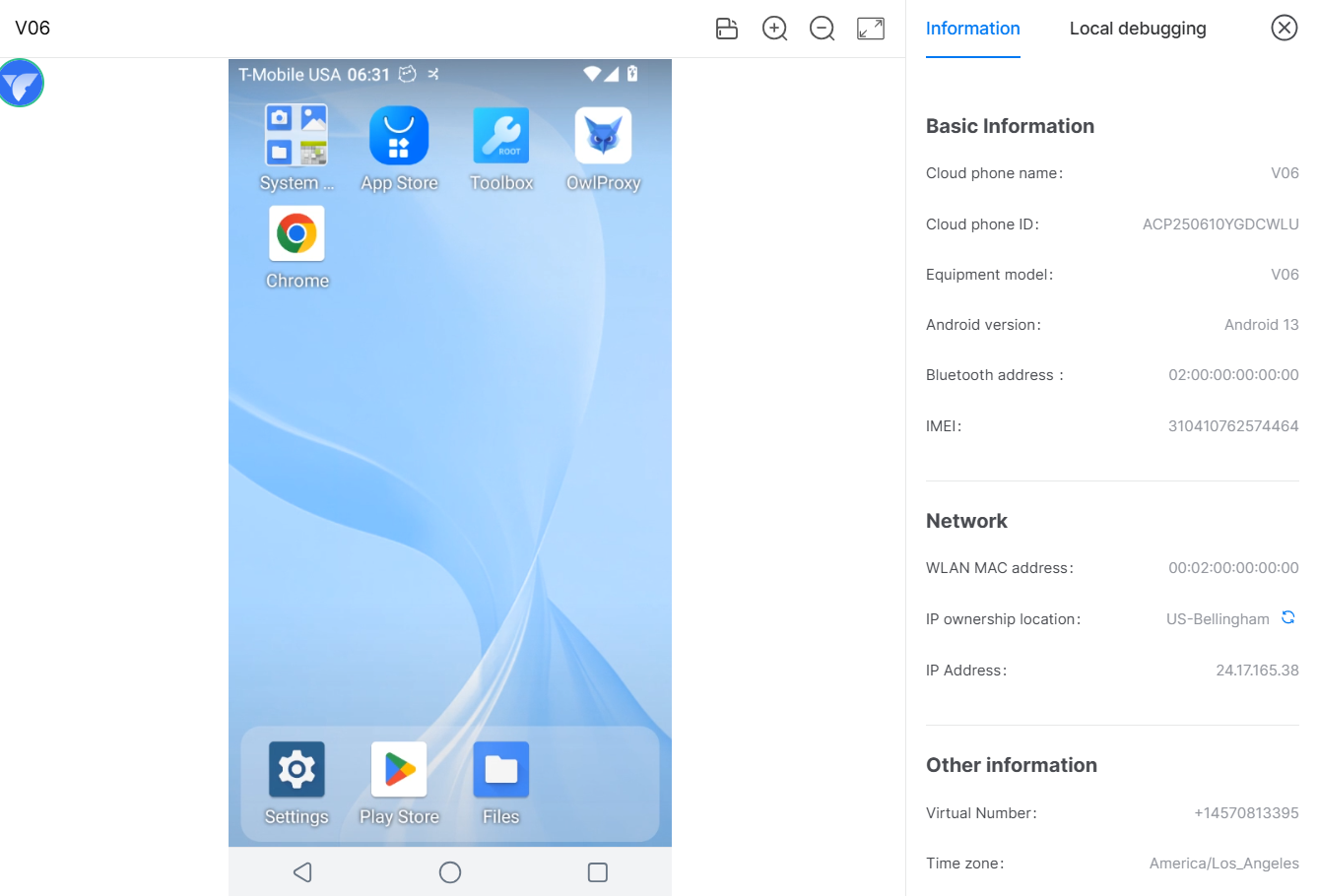
- Visit the My IP address checker.
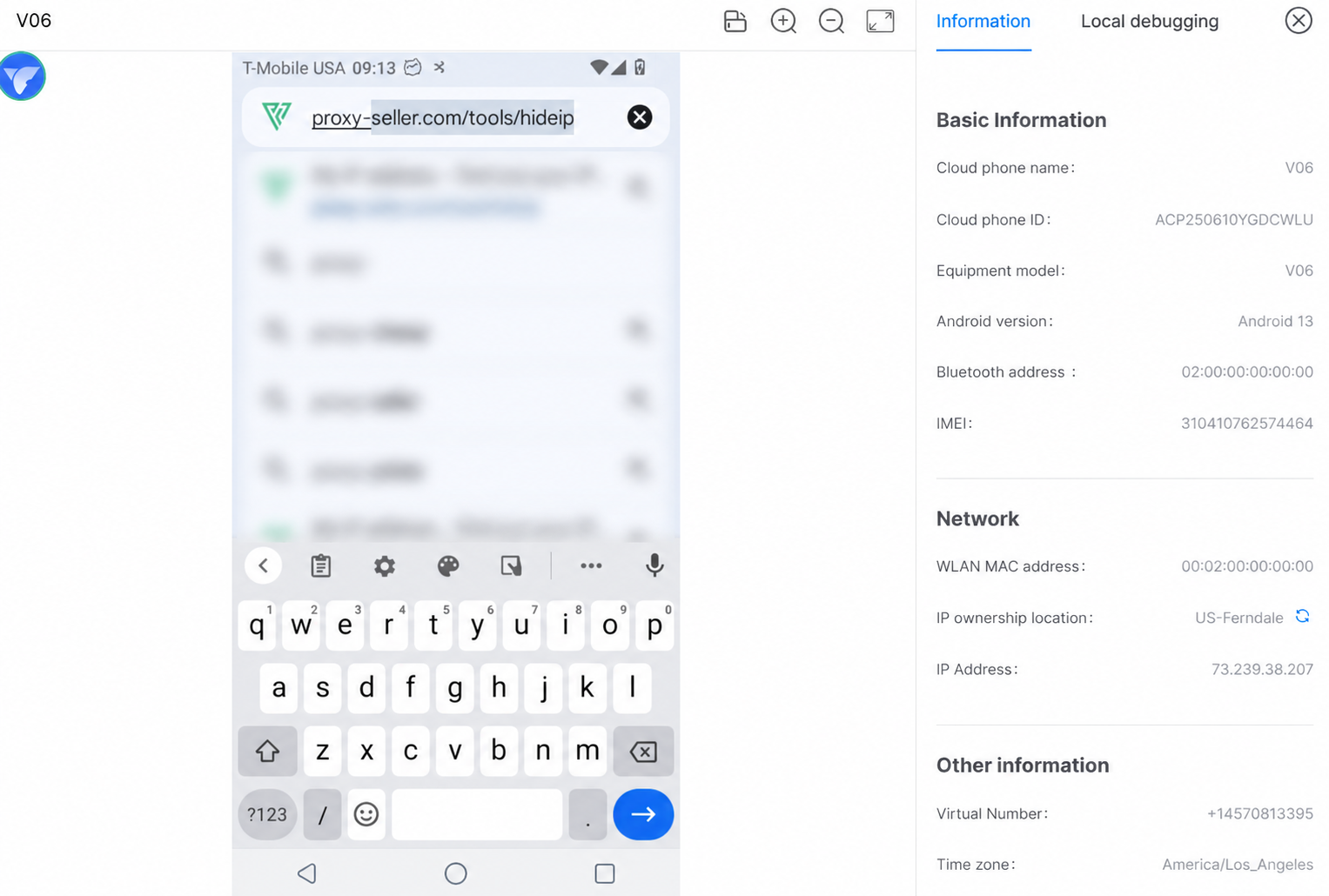
- Record the outgoing IP and reported country.
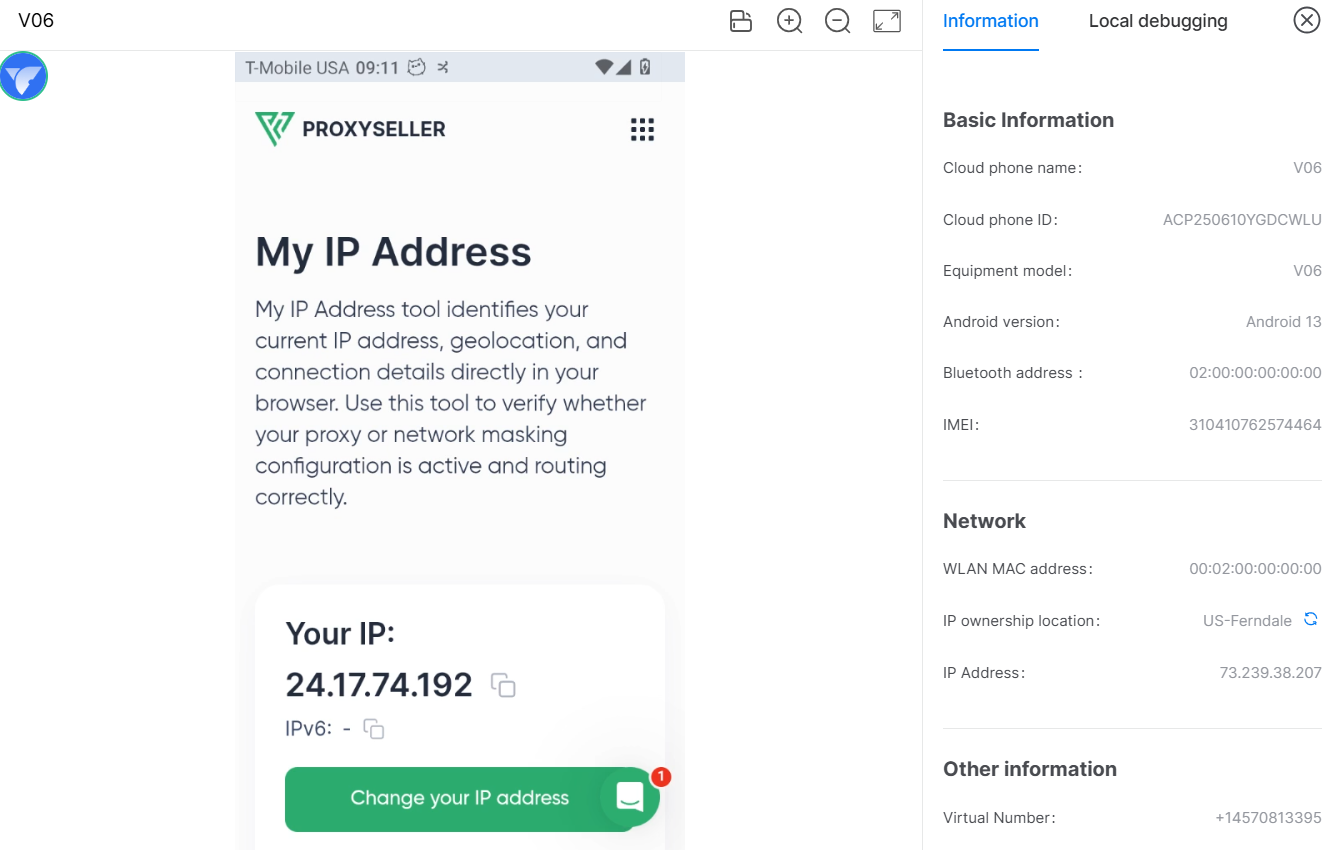
- Compare the country with your selected proxy location.
- Repeat the check during the session to confirm the expected rotation behavior.
- Open the target app and test the specific workflow you need.
For a rotating residential endpoint, the outgoing IP may differ from the address to which the proxy hostname resolves. The hostname identifies the connection endpoint; the site sees the residential exit selected for that request or session.
Choose a proxy type and rotation policy that fit your workflow
Choose the network type based on your VMOS Cloud testing. Keep in mind that fixed endpoints can be appropriate for repeated testing, while a residential connection can test public content from a particular consumer-network location.
Proxy type | Rotation | Suitable use cases |
Static ISP | No automatic rotation; the assigned IP stays fixed. Switch to another endpoint when you need a different IP. | Test a multi-step login or checkout flow with one IP; repeat app tests from the same outgoing address. |
Residential | Rotate per request or at a configurable interval of 1–3,600 seconds (up to 60 minutes). Sticky sessions retain an IP for up to 24 hours, but can end earlier if the source device disconnects. | Check public product pages for regional prices and availability; verify ad creatives and landing pages in selected cities. |
Datacenter IPv4 | No automatic rotation. Change IPs by switching between purchased endpoints manually or through your automation. | Run regression tests against your own app's backend; test access to a staging environment that allows the proxy's IP. |
Mobile | Trigger an IP change through a URL, or schedule automatic rotation every 5 or 30 minutes. | Verify mobile ads through a carrier-network IP; check how your app handles an IP change between test sessions. |
VMOS Cloud phone binds the proxy's carrier and time zone to the device. For example, a US residential proxy will have the carrier T-Mobile USA and the time zone America/Los_Angeles. However, you still need to go to Settings, then Date & time, and verify that the time zone matches the IP's country; otherwise, fingerprint checkers will flag the mismatch.
If you use a rotating proxy, target a state or city instead of a whole country so the new IP doesn't end up in a different time zone. The device language isn't affected by the proxy, so you have to change it manually.
STATIC ISP PROXIES FROM $0.98
Run every repeat test on your cloud phone from the same IP.
A static ISP proxy from Proxy-Seller keeps one IP for the whole rental period, so each test run on the same VMOS Cloud device starts from the same address. Bind one IP per device and connect over HTTP(S) or SOCKS5 with unlimited bandwidth.
Troubleshoot authentication errors and unexpected IP locations
Modify one setting at a time. Verify that the endpoint is online, then check its assignment in VMOS Cloud and application behavior. Continuously changing proxies prior to verifying the credentials makes it more difficult to find the source of the problem.
- Confirm the proxy username and password when authentication fails.Paste the endpoint credentials again and make sure there are no trailing spaces.
- Verify the host, port, protocol, and order status when the connection times out. Try the endpoint alone, then try the connection from the device.
- Verify the device assignment if the default server IP address is still displayed. Make sure the saved proxy is assigned to the right cloud phone.
- Check the proxy list's geographic settings if the reported country doesn't match the location you selected. Create an endpoint for the desired location and try again.
- Verify your rotation policy and customer availability sampling of IP addresses if the IP changes between requests.When your workflow needs to use the same IP for a long time, use a sticky session/static endpoint.
- Check the app requirements and routing if your browser is working, but the app is not.Test the software separately to capture any error messages.
- Rebind the proxy and verify the date & time if the device's time zone differs from the proxy's location.
- Add one SOCKS5 endpoint manually if bulk import fails, then import the remaining endpoints.
- Create a different sticky session per device if multiple devices share the same exit IP. Separate sessions do not imply unique IPs.
Use the Proxy checker to help separate endpoint problems from device configuration. A successful external check means the endpoint worked from the checker’s network; repeat the verification inside Android before concluding that setup is complete.
Finish one complete app test before adding more cloud devices
VMOS Cloud phone gives teams an Android environment for app testing, ad verification, and regional content checks. Pair it with Proxy-Seller residential proxies to choose the location your workflow requires and configure rotation or sticky sessions. Once you bind the proxy to your cloud phone, verify the outgoing IP inside Android and test your target app.
WHOLESALE PRICING FOR TEAMS: UP TO 30% OFF
Scale from one cloud phone to a full device fleet with a separate IP for each.
Tell us how many VMOS Cloud devices you run, which countries you test in, and how long each session must hold. Our team will plan per-device sticky sessions and quote wholesale pricing: 25–30% off residential proxies from 1 TB or ISP proxies from 1,000 IPs. Teams with MRR from $500 get a dedicated account manager.
FAQ
The platform enables product QA engineers, agencies, and operations teams to access Android environments remotely. Among other things, it lets you check app compatibility, view authorized marketing material, and visit public regional pages. Team permissions allow you to specify who can access each device.
Cloud Android devices don't come with a cellular plan or a phone number. SMS services are optional add-on services called SMS Receiver for one-time verification, and Cloud Number for 30-day, 90-day, and annual rental plans that supply global numbers for account verifications and platform registrations.
Verify the requirements of the application you intend to use and the service options separately. Proxy credentials provide network access, not a telephone number or SMS inbox.
Teams often combine VMOS Cloud with Proxy-Seller proxies to test apps, verify ads, and check regional content using cloud Android devices. Proxy-Seller has 220+ locations, city/ISP targeting, and HTTP(S)/SOCKS5 support. Residential sticky sessions can hold an IP for up to 24 hours, depending on the availability of the source device. DPA/SCC documentation helps meet business compliance needs, and business clients with MRR from $500 get a dedicated account manager to help with onboarding and growth.
Don’t count on your cloud phone keeping your apps and data forever after it expires. Check the provider’s current renewal and retention policies before you keep your work. Export significant test results before the vacation, and write down the device identifier along with its expiration date. See whether refreshing an existing unit maintains its environment, rather than buying a new replacement.
When setting up a proxy through the VMOS Cloud dashboard, you can choose one of two connection protocols. Please note: Using different ports for different protocols does not change your source IP address. Both ports lead to the same proxy server but handle traffic differently. HTTP/HTTPS port is recommended for 90% of tasks and is the most stable option for running on VMOS Cloud.
PROXIES FROM $0.02/IP
Ready to put this into practice?
Pick a proxy type and location, and start using it within minutes.
Instant delivery
24/7 support
Refund policy
About the author